

Best Photopea Open Source Alternatives - 4 Options
Here are the top 4 Photopea open-source alternatives that can allow you to simplify image editing tasks with no advanced skills.

By Jonna Updated on July 28, 2026


Photopea has earned its fans, and it mimics Photoshop closely enough that switching over barely feels like a learning curve. However, the longer you use it, the more its shortcomings become apparent - such as banner ads that suddenly pop up during editing and file size limits that cause bottlenecks when working with slightly larger files. That's why some may look for Photopea alternatives.
Luckily, there are some Photopea open-source alternatives that offer advanced tools for image editing.
4 Best Photopea Open Source Alternatives
Some of these alternatives to Photopea open-source tools are built for pixel-based photo editing, others for vector art, and one is laser-focused on RAW photography workflows. Pick based on what you're actually trying to accomplish, not just which name sounds the most familiar. Here's a closer look at each Photopea open-source alternative, what it does well, and where it falls short.
GIMP
GIMP - short for GNU Image Manipulation Program - is probably the name that comes up first in almost any conversation about free image editors, and for good reason. It's been around since the mid-90s, it's genuinely open-source under the GPL license, and it runs on Windows, macOS, and Linux without breaking a sweat. Think of it as the granddaddy of this whole category: not the flashiest tool on the block, but dependable in a way that's hard to argue with.
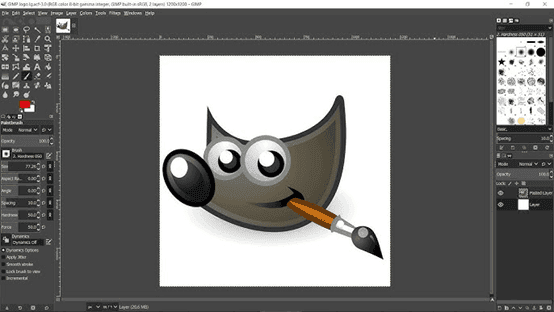
🌟 Key features:
- Full layer, mask, and channel support for non-destructive-style workflows
- A huge library of filters, brushes, and community-built plugins
- Customizable interface with single-window or multi-window modes
- Support for virtually every common image format, including PSD import
- Scriptable via Python and Script-Fu for batch automation
🟢 Pros:
- Completely free and open-source, with no ads or paywalls
- Extremely capable for both photo retouching and digital painting
- Cross-platform and actively maintained, with a large plugin ecosystem
- Works entirely offline once installed
🔴 Cons:
- The interface takes real time to get comfortable with, especially for Photoshop switchers
- Lacks the built-in AI tools (smart fill, one-click background removal) that newer platforms offer
- Color management can feel fiddly compared to more modern editors
Krita
If GIMP is the all-purpose workhorse, Krita is the artist's studio. It's open-source too, but it was built from day one with illustrators, concept artists, and animators in mind rather than photo retouchers. That focus shows the moment you open it - the brush engine alone puts a lot of paid software to shame.
🌟 Key features:
- Advanced brush engine with natural media simulation and stabilizers
- Built-in animation tools, including frame-by-frame and onion-skinning support
- PSD compatibility for easy handoff with Photoshop users
- Resource manager for importing custom brushes, gradients, and palettes
- Vector layer support alongside traditional raster painting
🟢 Pros:
- Best-in-class for digital painting and illustration work
- Free and open-source with zero subscription pressure
- Highly customizable workspace and shortcuts
- Active development backed by the Krita Foundation
🔴 Cons:
- Less suited to straightforward photo editing tasks than GIMP
- Can be resource-intensive on older hardware
- Steeper learning curve if you're coming from a simpler tool
Darktable
Photographers who shoot in RAW format need a different kind of tool than someone editing JPEGs for a blog post, and that's exactly where Darktable comes in. It's an open-source RAW photo developer and image library manager, often described as the free answer to Adobe Lightroom rather than to Photoshop or Photopea. If your workflow revolves around culling, tagging, and non-destructively developing hundreds of RAW files, this is the one to try.
🌟 Key features:
- Non-destructive editing pipeline that never touches your original RAW file
- Support for more than 400 camera RAW formats
- Parametric masks and blend modes available on every editing module
- Virtual lighttable for rating, tagging, and organizing large photo libraries
- OpenCL-accelerated processing for faster edits on supported GPUs
🟢 Pros:
- Genuinely professional-grade RAW processing, entirely free
- Non-destructive workflow protects your original files by design
- Strong batch-editing and library management tools
- Runs on Linux, macOS, and Windows
🔴 Cons:
- Not built for general pixel editing or graphic design work
- Interface leans technical, which can overwhelm casual users
- Steeper learning curve than lighter, more visual editors
Inkscape
Every tool on this list so far handles raster images - pixels - but Inkscape plays in a different sandbox entirely: vector graphics. If your Photopea use case leans toward logos, icons, or scalable illustrations rather than photo retouching, this open-source vector editor deserves a serious look as your Photopea open-source alternative.
🌟 Key features:
- Native SVG support with clean, standards-compliant export
- Bezier and pen tools for precise path creation and editing
- Boolean operations (union, difference, intersection) for combining shapes
- Bitmap tracing to convert raster images into scalable vector art
- Extension system with over 150 bundled tools plus third-party plugins
🟢 Pros:
- Free and open-source, with a strong, active development community
- Handles vector work that raster-only editors simply can't do
- Exports to SVG, PDF, EPS, AI, and more without licensing restrictions
- Lightweight and quick to launch, even on modest hardware
🔴 Cons:
- Not a substitute for raster photo editing at all
- Some advanced features (like mesh gradients) can feel less polished than paid vector tools
- Text handling is functional but not as refined as dedicated design software
Another Free Online Photo Editor for Everyone - UltraPic
If what you actually want is a fast, browser-based Photopea alternative online for everyday product shots, portraits, or social content, it's worth rounding out your toolkit with UltraPic. It isn't open-source, but it's free, and it leans heavily on AI to shortcut tasks.

Create Studio-Quality Product Photos with AI
Make product images clean, professional and conversion-ready.
- Remove messy backgrounds in one click effortlessly
- Generate eye-catching custom backdrops for photos
- Boost clicks and sales with better product images
- No design or editing skills needed, instant result


UltraPic is a browser-based AI photo editor aimed squarely at people who need clean, professional images without a design background - think e-commerce sellers, content creators, and small business owners prepping visuals for Amazon, Etsy, or Instagram. There's nothing to install; you just open it in a browser tab and go, which makes it a genuinely useful alternative to Photopea when you want speed over depth. Its highlighted features include:
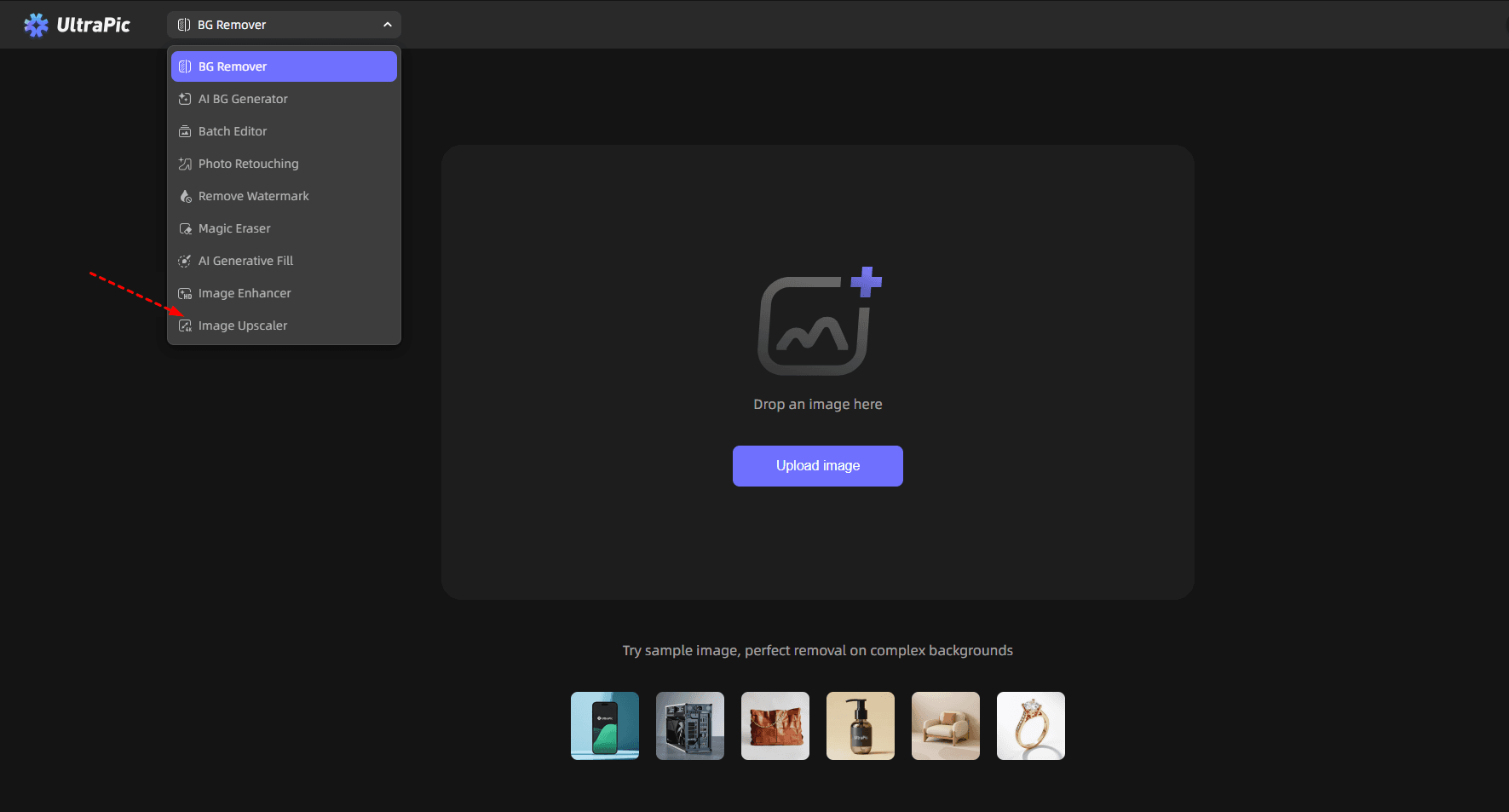
- AI Background Remover - strips backgrounds out in one click with clean, precise cutouts
- AI Background Generator - creates new, photorealistic scenes to place your subject into
- Batch Editing - processes dozens of images for BG removal at once with consistent settings
- Photo Retouching - smooths skin, removes blemishes, and polishes portraits automatically
- Watermark Removal - cleans up unwanted marks or overlays from images
- Magic Eraser - removes unwanted objects or distractions from a photo
- AI Generative Fill - fills in missing or edited areas with contextually accurate detail
To run the UltraPic Photopea alternative free online, just access UltraPic in your browser and select the target image editing tool for photo editing with AI.
A quick comparison of Photopea Open Source Alternatives vs UltraPic
|
Tool |
Best For |
Main Advantage |
|
GIMP |
Advanced photo editing |
Powerful open-source features |
|
Krita |
Digital painting |
Excellent creative tools |
|
Darktable |
RAW photography |
Professional color processing |
|
Inkscape |
Vector design |
Scalable graphics creation |
|
UltraPic |
AI-powered editing |
Fast automatic enhancements |
Conclusion
Finding the right Photopea open source alternative depends on your editing goals. There is no single tool that works perfectly for everyone because different users need different features.
If you want a powerful desktop editor with advanced customization, GIMP remains one of the best choices. Artists and illustrators may prefer Krita, while photographers working with RAW files can benefit from Darktable. However, if your priority is speed, automation, and AI-powered enhancement, UltraPic offers a modern approach to image editing.

