

How to Remove Objects in Lightroom - Beginner Guide
Want to know how to remove objects in Lightroom? Here is a complete guide and get another free online object remover.

By Jonna Updated on April 22, 2026


Can you Remove Unwanted Objects in Lightroom?
If you've ever captured a nearly perfect photo only to notice a stranger in the background, a distracting sign, or a random cable cutting through the frame, you may wonder how to remove objects from the image. Adobe Lightroom, as a cloud-based photo editing and organization service from Adobe, is designed for photographers to edit, manage, store, and share images across desktop, mobile, and web. You may wonder: can you remove objects in Lightroom?

Yes, you absolutely can remove unwanted objects in Lightroom. Lightroom isn't as advanced as Photoshop when it comes to complex object removal. It's designed primarily for photo enhancement, things like exposure, color grading, and tone adjustments. Object removal is more of a supporting feature. Still, for many situations, it works quite well. Here's what Lightroom can handle effectively:
- Small distractions like dust spots or blemishes
- Minor background elements
- Simple object removal in clean areas
- Subtle corrections in portraits and landscapes
And here's where it may struggle:
- Large objects covering detailed backgrounds
- Complex textures like crowds or intricate patterns
- Situations requiring heavy reconstruction
So, except for learning how to remove objects in Lightroom, there is another alternative for more precise object removal.
How to Remove Objects in Lightroom
Lightroom offers a complete set of built-in removal tools to erase unwanted objects, distractions, blemishes, dust, wires, people, and imperfections from photos. How to cut out an object in Lightroom isn't complicated, but it does require a bit of attention to detail.
Useful Removal Tools in Lightroom
Before learning how to remove something in Lightroom, let's first take a look at some tools that you can rely on to remove objects from an image.
1️⃣ Generative Remove - Powered by Adobe Firefly generative AI, it is a removal feature that AI completely reconstructs the background, including shadows, lighting, gradients, and complex textures. Best for large objects, strangers, signs, complex backgrounds, and messy scenery.
2️⃣ Content-Aware Remove - Lightroom's standard smart removal tool intelligently analyzes the surrounding background and fills the erased area automatically. Best for: wires, power lines, random debris, small unwanted objects, and background clutter.
3️⃣ Healing Tool - A basic repair tool for small imperfections. It automatically samples nearby pixels, matches color, light, and texture, and smoothly covers flaws. Best for: sensor dust, skin blemishes, small spots, minor scratches, tiny distractions.
4️⃣ Clone Tool - Manual cloning tool with full control. You manually select a source area to copy and paint over unwanted elements. Best for: regular patterns, textures, grids, straight lines, structured backgrounds.
Step-by-Step Guide on Removing Objects in Lightroom
Now let's get into how to remove objects in Lightroom. Here, we take using generative AI to remove distractions as an example:
Step 1. Launch Lightroom and import the photo you want to edit. Then, select the Remove Tool in Lightroom.
Step 2. Click on the Remove-mode tab on the left, check the Generative AI box, and brush over the object you want to remove.
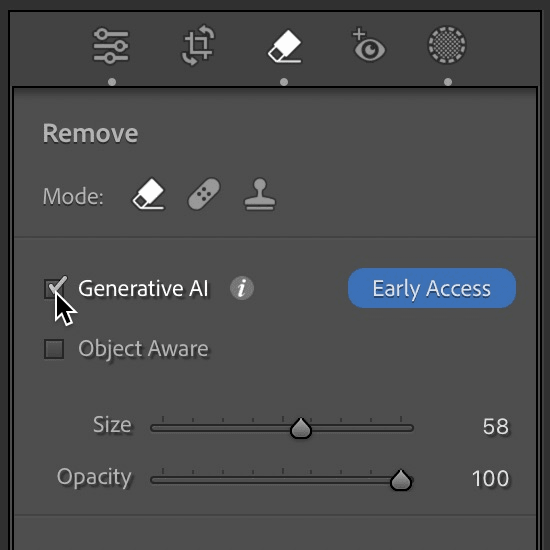
Step 3. In the Selected menu, adjust the following as needed, and then select Remove.
- Add - Add more objects to the selection.
- Subtract - Remove objects from the selection.
- Overlay color - Select the color of the Subtract overlay.
- Size - Adjust the brush size for drawing the selection.
Step 4. Lightroom will generate 3 different variation options. You can also select Refresh to generate 3 new variations for Adobe Lightroom to remove objects.
💥Key limitations of Lightroom object removal:
- Weak performance on semi-transparent watermarks and dense logos
- Lower quality AI fill compared to dedicated tools
- Slow processing for high-resolution e-commerce product photos
- No dedicated e-commerce optimization features
- No AI background generator
Easier Alternative Object Remover to Clean up Pictures Online Free
While Lightroom is powerful, it's not always the quickest option, especially for beginners or users who just want fast results. This is where online tools like UltraPic come into play.

Remove Objects from Images with AI Easily
Make your images clean and professional.
- 1-Click to remove unwanted objects from photos
- Remove messy backgrounds in one click effortlessly
- Generate eye-catching custom backdrops for photos
- No design or editing skills needed, instant result


UltraPic is an AI-driven image editing tool designed for simplicity and efficiency. It focuses on removing unwanted objects, removing watermarks, removing backgrounds, and imperfections with minimal effort. Instead of manually adjusting brushes and sampling areas, UltraPic automates the entire process. You simply upload your image, select the object, and let the AI handle the rest. The key features of UltraPic are:
🟢 One-click object removal - AI-powered object detection and removal.
🟢 Strong texture reconstruction - Helpful for walls, floors, sky, tables, and product backgrounds.
🟢 Beginner-friendly - No installation required, quick results compared to manual editing, and a simple interface anyone can use.
🟢 Fast Processing - Quick results compared to manual editing.
🟢 High-resolution output - Export with no watermark - great for store listings, social media, and marketing.
Step 1. Open UltraPic using a browser, select the Magic Eraser, and upload your photo.
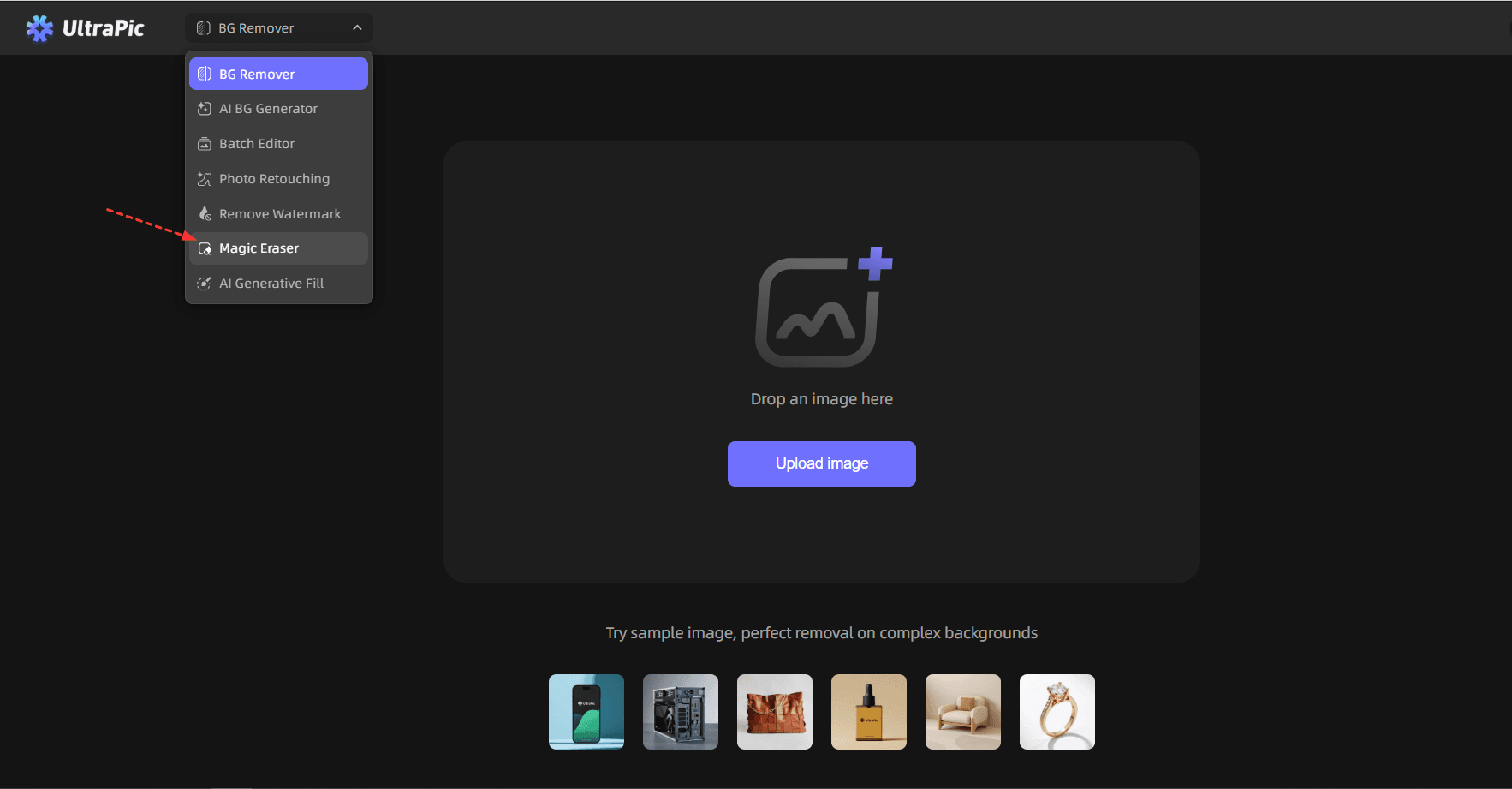
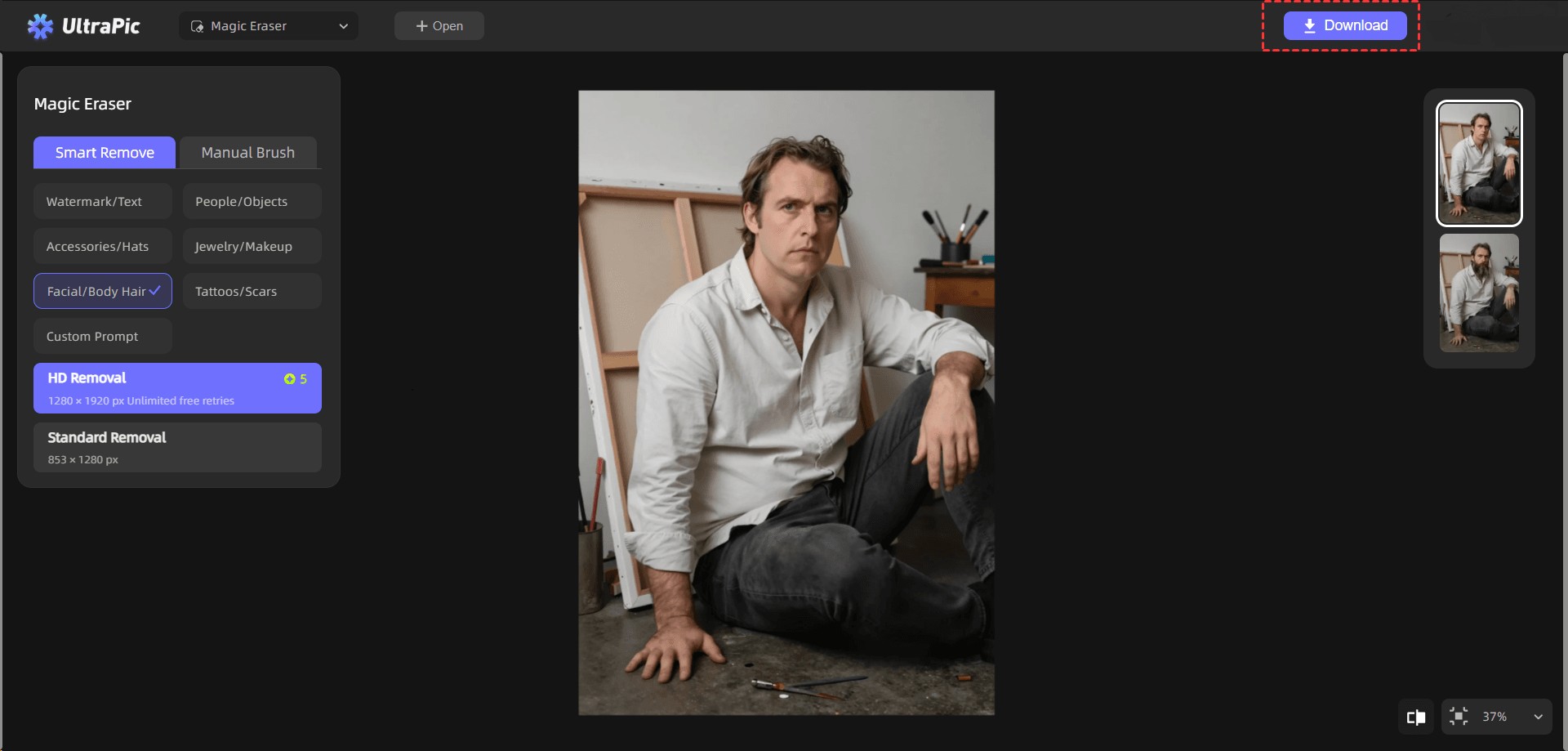
Step 2. Select the recommended object to remove under Smart Remove, or use the Brush or Marquee to paint over the area to remove under Manual Remove.

Step 3. Click on HD Removal or Standard Removal to remove items from photo online free. Finally, hit Download to export it.
FAQs on Object Removal
#1. Does Lightroom have an eraser tool?
Not exactly. Lightroom doesn't have a traditional "eraser" tool like some other editors. Instead, it uses the Healing Brush and Clone tools to replace unwanted areas with surrounding pixels. These tools serve a similar purpose, but they require a bit more manual input.
#2. Does Lightroom have AI object removal?
Yes, newer Lightroom versions include AI-assisted removal features such as Content-Aware or Generative Remove, depending on version and platform.
#3. Is there a way to delete a random object from a picture?
Absolutely. Whether you're using Lightroom or an online tool like UltraPic, removing random objects is entirely possible.
In the End
That’s all about how to remove objects in Lightroom. Lightroom offers a solid set of tools that work well for many situations, especially when dealing with smaller or simpler objects. However, it’s not always the fastest or easiest option, especially for beginners or those working with complex images.
In such a case, you may try the AI-powered tool - UltraPic. It is simpler to use and faster for image processing. Also, you can use it for 1-click watermark removing, blemish fixing for images, and AI image fill.

