

Top 4 AI Generative Fill Online: Fill in Images & Replace Objects
Learn the best 4 AI generative fill online to fill in images or replace objects in images with ease.

By Jonna Updated on June 4, 2026


What Can AI Generative Fill Do?
The rise of AI generative fill online tools has completely changed how people edit images. AI auto fill is more than just a fancy image editing feature. It analyzes the image, understands context, and generates new pixels that blend naturally with the existing content.
Whether you want to extend backgrounds, remove unwanted elements, or add entirely new objects into a scene, AI-powered generative fill tools make the process seamless and surprisingly realistic. Here’s what it can do in practical terms:
- Extend image backgrounds beyond their original borders.
- Replace objects with realistic alternatives.
- Remove unwanted elements and reconstruct missing areas.
- Add entirely new objects using text prompts.
- Enhance composition without visible edits.
What makes AI image fill generator so powerful is its ability to "imagine" what should be there. Instead of copying nearby pixels like traditional clone tools, they generate new content based on patterns, lighting, and perspective. For example, if you remove object, like a person, from a beach photo, the AI won’t just blur the area; it will recreate sand textures, shadows, and even subtle lighting variations. The result feels natural, almost invisible.
Top 4 AI Generative Fill Online in 2026
Here are some reliable AI image fillers you can use AI to fill in the blanks image, use AI to redraw image, replace items in images using text, and so on. Some are very well-known, while others may not be as well-known; you can choose whichever suits your needs.
|
|
Photoshop Generative Fill |
UltraPic AI Generative Fill |
AI Generative Fill from Canva |
Fotor AI Generative Fill |
|
Ease of Use |
Moderate-High |
Very Easy |
Easy |
Easy |
|
Key Features |
Full add/remove/replace/expand (outpaint) Advanced mask/edge refinement, Lighting/perspective matching |
Click object removal & addition AI background replacement |
Magic Edit (add/replace) Magic Eraser (remove) Magic Expand (outpaint) |
AI Replace (fill) AI Object Removal AI Expand (outpaint) |
|
Pricing |
Subscription only |
Free |
Limited AI uses |
Free |
|
Best For |
Professional designers, high-end commercial work, detailed composites, users needing full control |
Social media users, quick on-the-go edits, and beginners who want speed |
Non-designers, marketers, social teams, template-based content, collaboration |
Casual creators, students, small businesses, daily photo fixes, budget-friendly pro features |
Photoshop Generative Fill
Photoshop Generative Fill is an AI-powered feature integrated into Adobe Photoshop, leveraging the Adobe Firefly generative AI model to let users add, remove, extend, or replace image content using simple text prompts, all non-destructively, with seamless, realistic results.
The image fill with AI in Photoshop works by analyzing the selected area’s context (lighting, perspective, texture, shadows) and generating content that matches the original image’s visual logic, eliminating the need for manual painting, cloning, or complex compositing.
🌟Key Features:
- Object removal and replacement
- Text-to-image editing with natural language prompts
- High-resolution output suitable for professional use
- Seamless integration with layers and masks
- Context-aware lighting and shadows
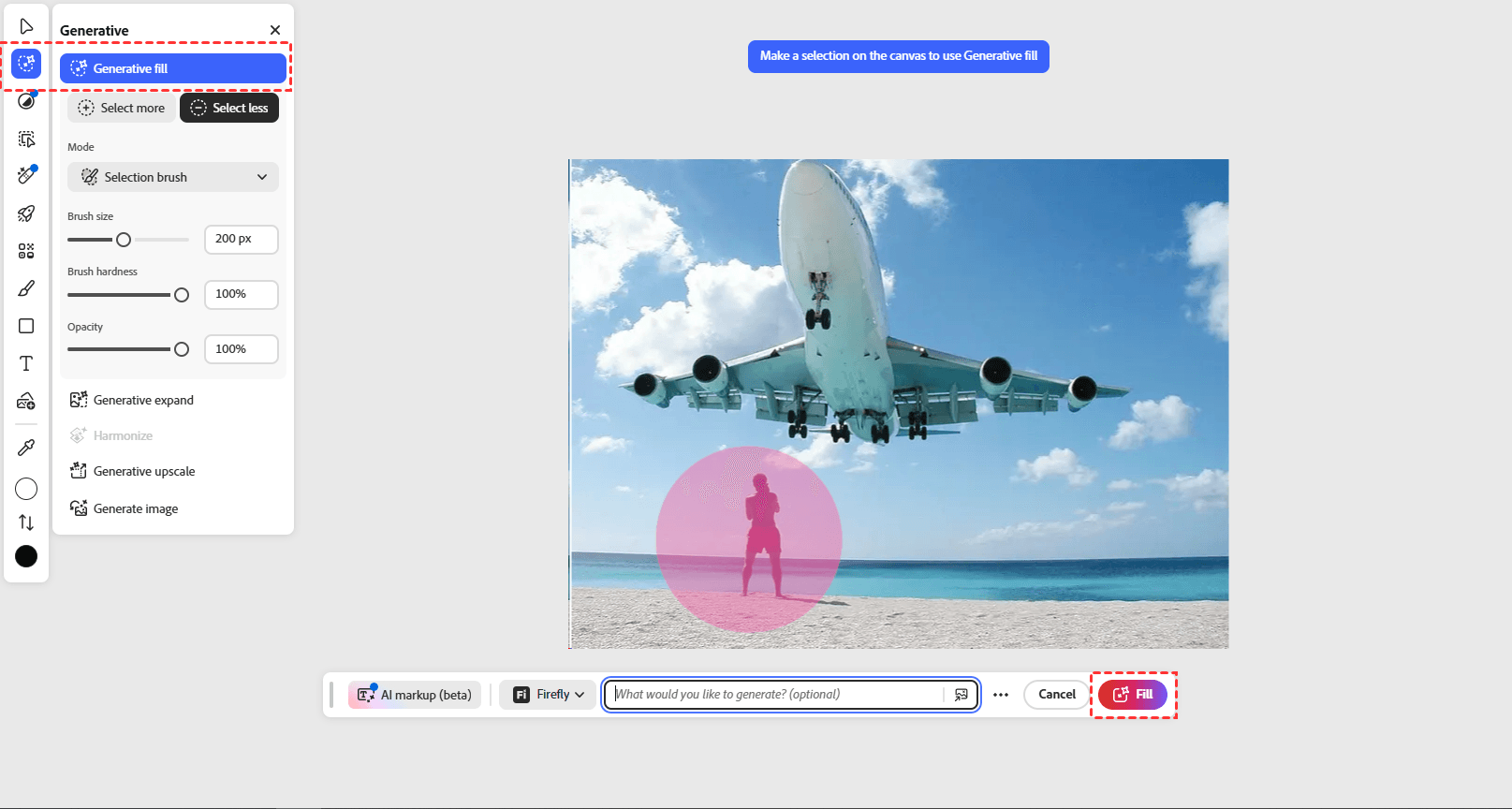
Here is how to use Photoshop AI generative fill online:
Step 1. Go to the Photoshop Generative Fill, drag and drop an image, and then duplicate layer if needed.
Step 2. Select Generative Fill, select an area on the canvas.
Step 3. Then, enter a prompt describing what you want to add or replace, and click Fill to run this AI image filler. Review the generated variations and select the best one to download.
UltraPic AI Generative Fill
If you’re looking for a more streamlined and beginner-friendly Photoshop generative fill alternative, UltraPic is considered to be a top choice. Its free AI generative fill feature is perfect for users who want quick results without diving into complex editing environments. It targets casual photographers, social media creators, and beginners who want AI-powered edits without technical training.

Create Studio-Quality Photos with AI
Make images clean and professional.
- Generative fill or replace objecs in an image with AI
- Remove messy backgrounds in one click effortlessly
- Generate eye-catching custom backdrops for photos
- No design or editing skills needed, instant result


🌟Key features:
- Smart background reconstruction
- Fast processing with minimal lag
- Clean, intuitive interface
- One-click object removal and replacement
- High-quality output suitable for social media and marketing
- Supports multiple editing modes, including image fill with AI and enhancement
- Other functions like one-click photo retouching, magic eraser, watermark remover, etc.
Follow the steps below to run UltraPic as a Photoshop generative fill alternative tool with no watermark:
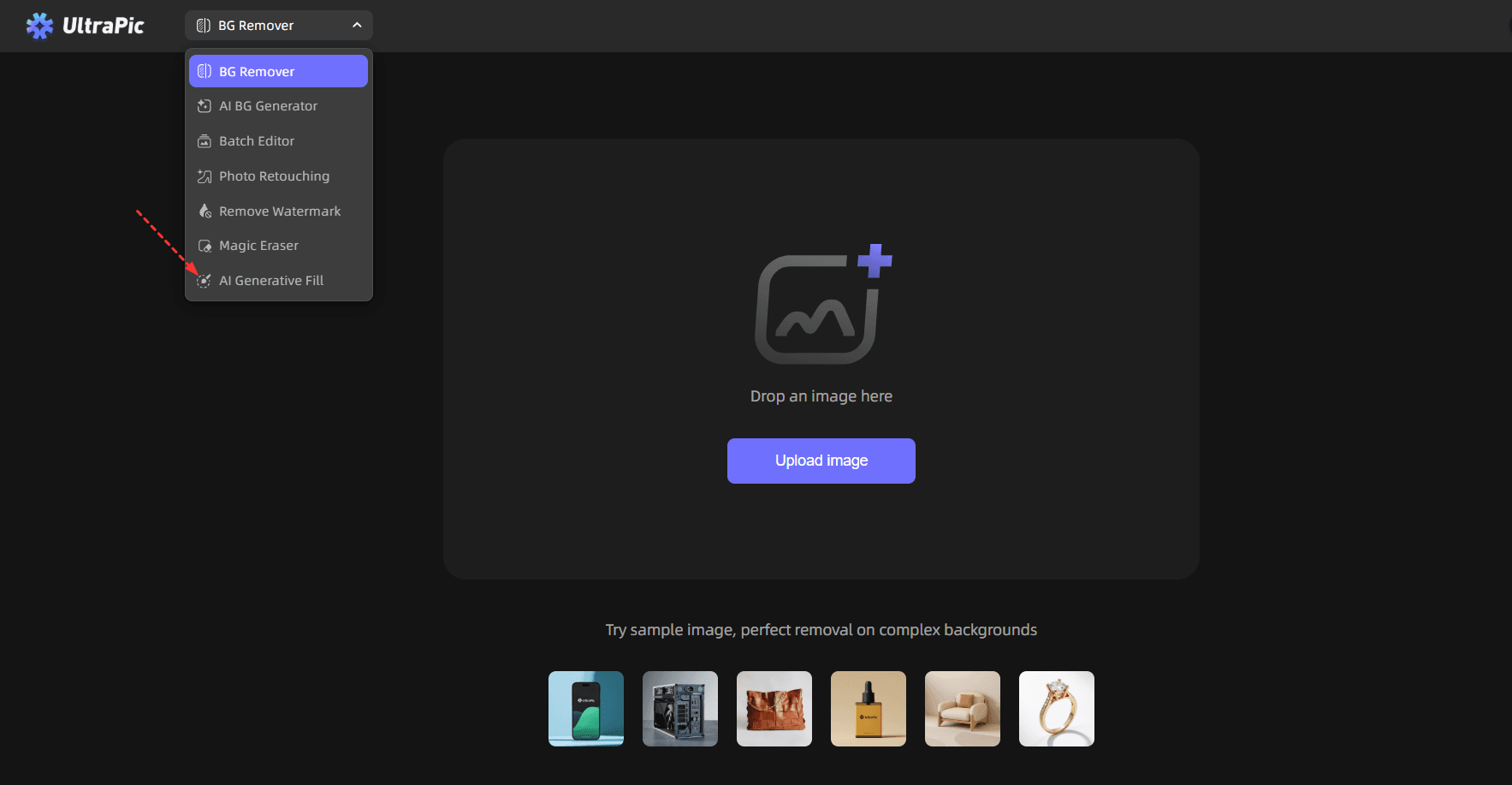
Step 1. Access the UltraPic app using your browser, and then select the AI Generative Fill tool.
Step 2. Upload the image to edit, brush over the area you want to redraw on the canvas, and then describe the changes you wish to make.
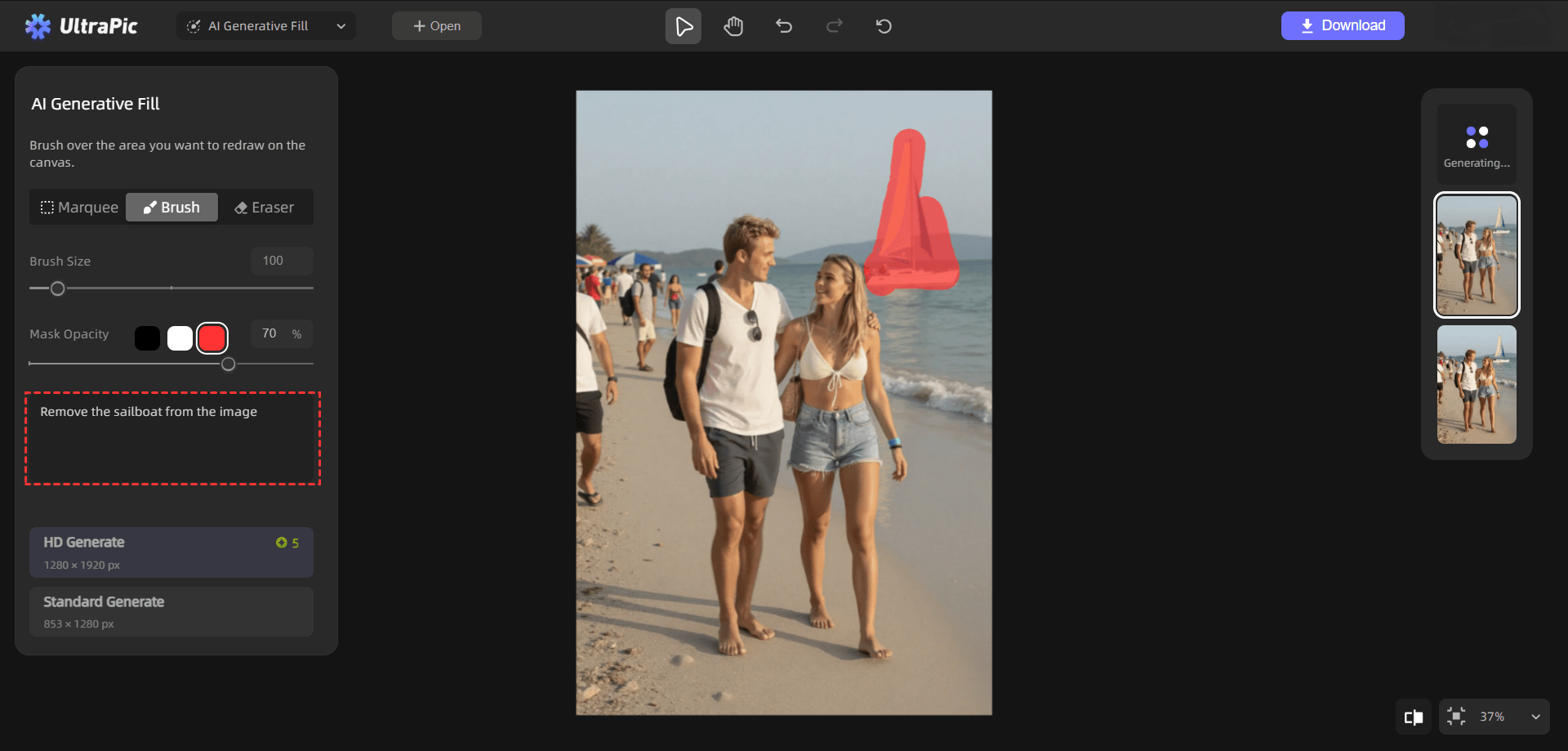
Step 3. Click on HD Generate or Standard Generate for generative fill online free, and wait for it to complete. When it's done, hit Download.
AI Generative Fill from Canva
Canva Generative Fill is an AI editing tool that lets you add, remove, extend, or replace image content with text prompts. It lives within Magic Studio, a suite of 25+ AI tools unified in the Canva editor. It’s built for non-designers and busy creators, with touch-friendly mobile workflows and deep integration into Canva’s template/asset ecosystem.
🌟Key Features:
- Magic Expand for extending images
- Magic Eraser for removing objects
- Text-based image generation
- Seamless integration with design templates
- Cloud-based editing across devices
Step 1. To perform image generative fill with Canva, visit its AI Generative Fill website, and then upload the photo.
Step 2. Select Magic Edit under Edit image, and then describe the prompts to add, remove, or edit elements as needed.
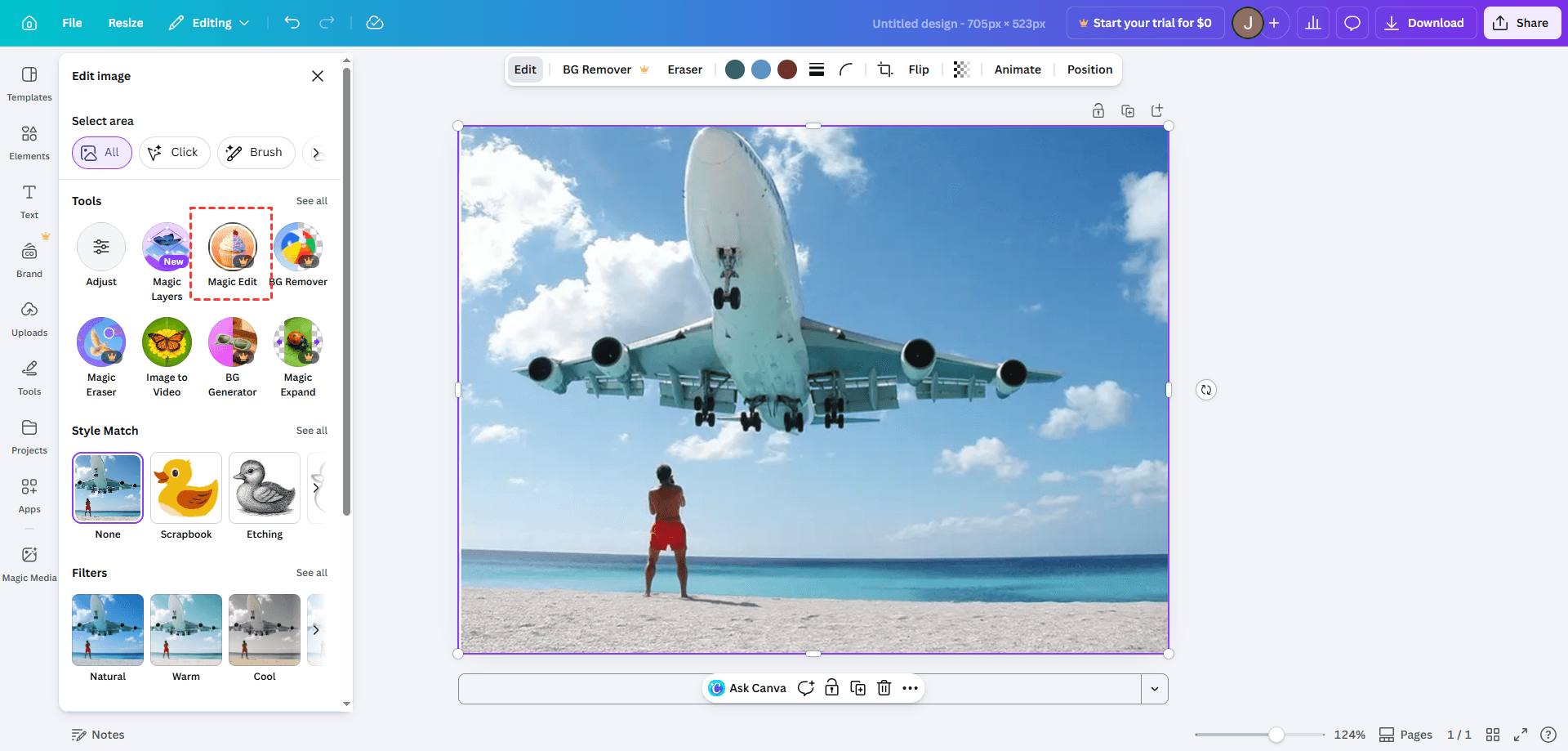
Step 3. Finally, download your image as JPEG, PNG, or another file format.
Note: If you’re on a Canva Premium plan, you’ll also be able to unlock Affinity AI generative fill. This is because Affinity is acquired by Canva. Affinity is a professional, desktop-first, precision design suite (for pro work), while Canva is a browser/mobile-first, template-driven, quick-design platform (for fast social/marketing assets).
Fotor AI Generative Fill
Fotor AI Generative Fill is a user-friendly, AI-powered photo editing tool integrated into Fotor’s cross-platform editor. It lets users add, remove, extend, or replace image content via simple text prompts. It is designed for casual creators, social media users, and beginners who want fast, accessible AI edits without professional software complexity.
🌟Key features:
- AI object remover and replacer
- Background generation with natural blending
- One-click enhancements
- Batch editing capabilities
- Cross-platform support (web, desktop, and mobile)
Step 1. To use AI fill in the blanks image online with Fotor AI Generative Fill, access its AI Generative Fill, and then upload your photo.
Step 2. Mark the target selection area, choose a replacement object like jeans, cabin, or use prompts to describe what you wish to replace, or use its Quick Select option.
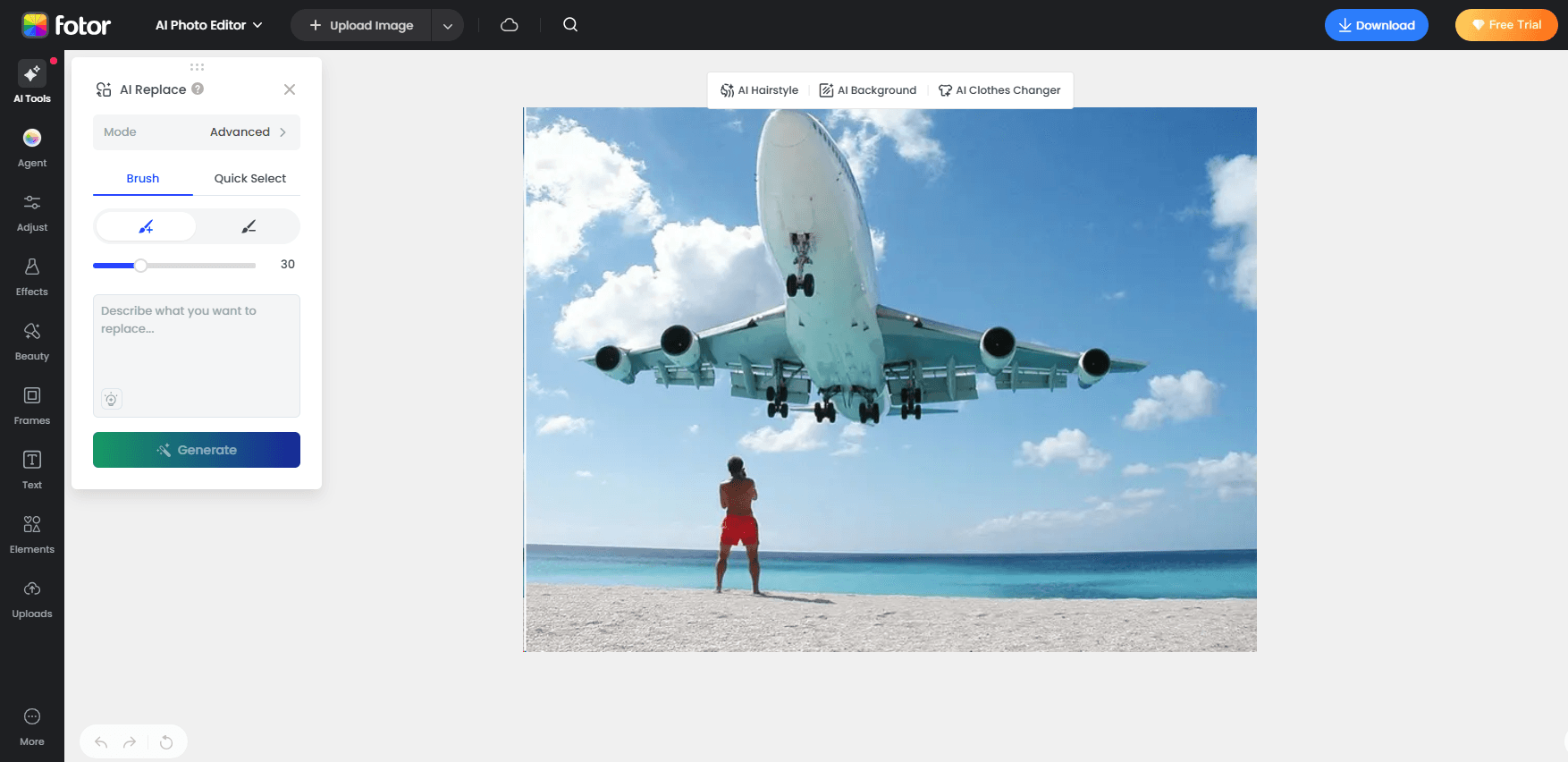
Step 3. Click Generate and then download the image.
In the End
With AI generative fill online, you can use your imagination to fill in blank images or replace objects in an image easily and quickly. If you’re looking for precision and professional-grade output, Adobe Photoshop is attractive for professionals. For speed and simplicity, UltraPic delivers impressive results with minimal effort.

