

How to Remove Object from Photo Free Online - 4 Best Ways
This article presents 4 solutions on how to remove object from photo free online, with detailed step by step guidelines. Read it to get the one that suitable for you!

By Jonna Updated on June 4, 2026


How Can I Remove an Object from a Photo?
“Hello, guys. I went on a trip during my recent vacation and took some photos. However, some of the photos include other people in them. How do you guys remove object from photo free online?”
Removing an object from a photo used to be a tedious process that required advanced editing skills and software like Adobe Photoshop. You’d have to manually select the object, use complex tools like the Clone Stamp or Healing Brush, and spend hours blending the area to match the background. But today, with an AI object remover, removing an object from a photo online is a piece of cake.
In the following, we will cover 4 online photo object removers and show you how to remove unwanted objects from photos online free.
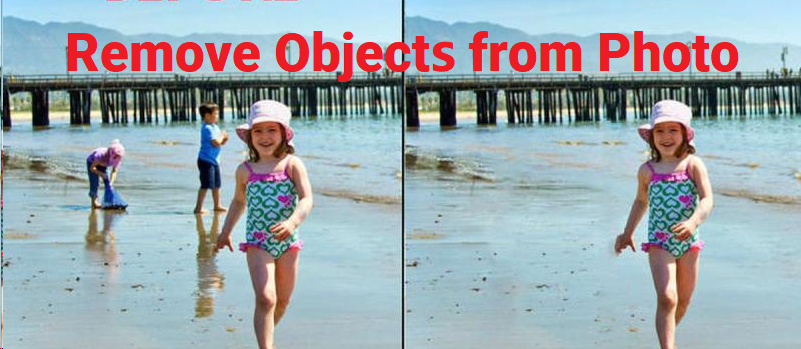
Way 1. How to Remove Object from Photo Free Online using UltraPic
UltraPic is a professional online image editor that is designed specifically for object removal, watermark removal, background removal, etc. It relies heavily on AI to reconstruct the background with minimal visible artifacts. It works on all major image formats (PNG, JPG/JPEG, WEBP, etc.) and supports high-resolution photos, so you don’t have to worry about losing quality during the editing process.
UltraPic's object removal tool works best for small to medium-sized objects, like people, trash cans, power lines, or blemishes. It's also great for removing text overlays or logos from photos. Also, it offers other photo editing tools like background generation, photo retouching, AI generative filler, and so on.

Create Studio-Quality Product Photos with AI
Make product images clean, professional and conversion-ready.
- One-click remove unwanted objects from photo
- Remove messy backgrounds in one click effortlessly
- Generate eye-catching custom backdrops for photos
- No design or editing skills needed, instant result


You can follow the steps below to figure out how to remove object from photo without blur:
Step 1. Navigate to the UltraPic's Magic Eraser, upload the image to remove unwanted objects from photos online free.
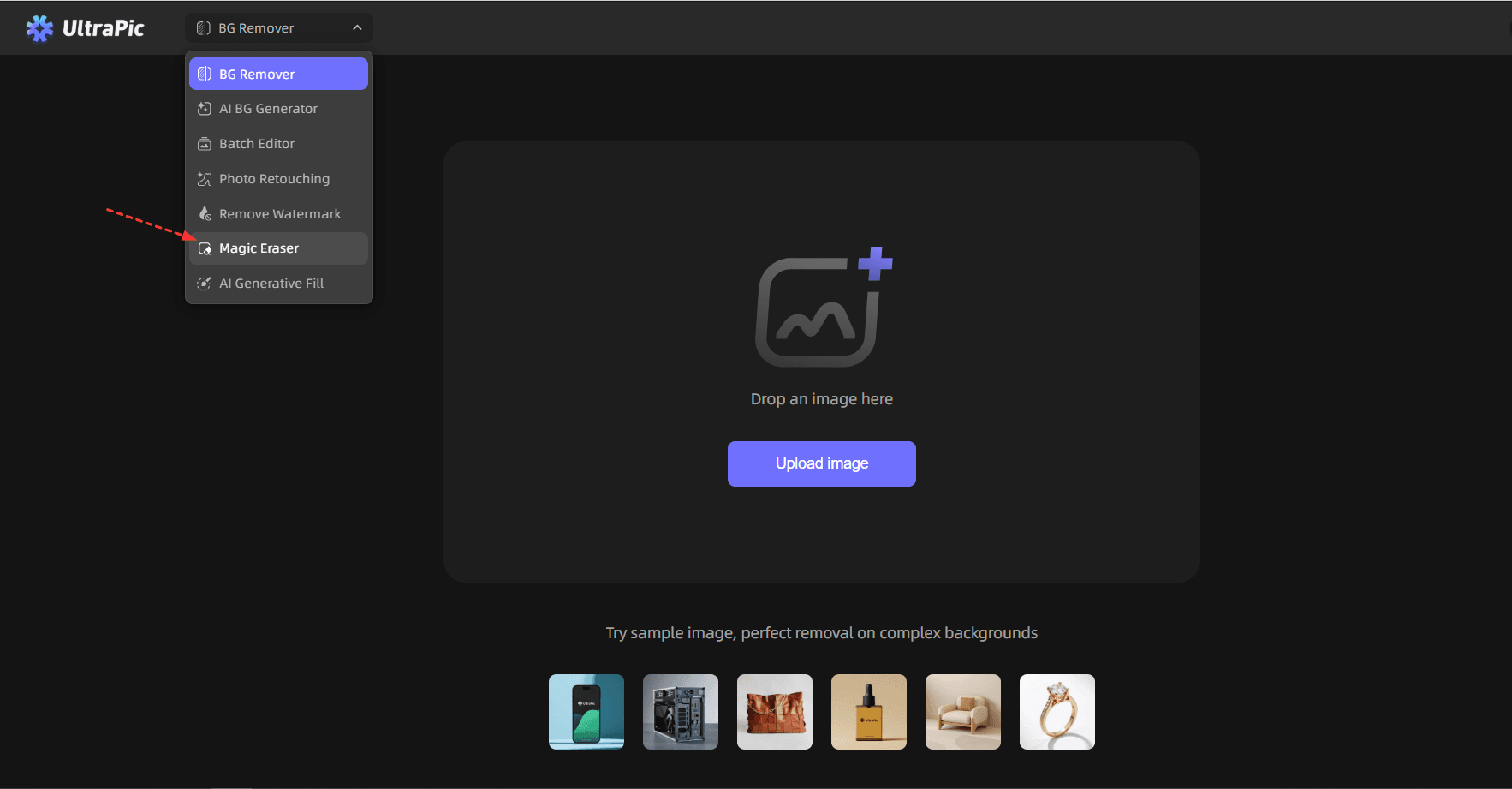
Step 2. Here are two object removal modes for you:
- Smart Remove: One-click erase watermark/text, people, jewelry, tattoo, scars, or use text prompts to remove part of image with AI, with no manual selection.
- Manual Brush: Use the marquee, brush, or eraser to brush over the area to remove on the canvas for more detail-controlled object removal.

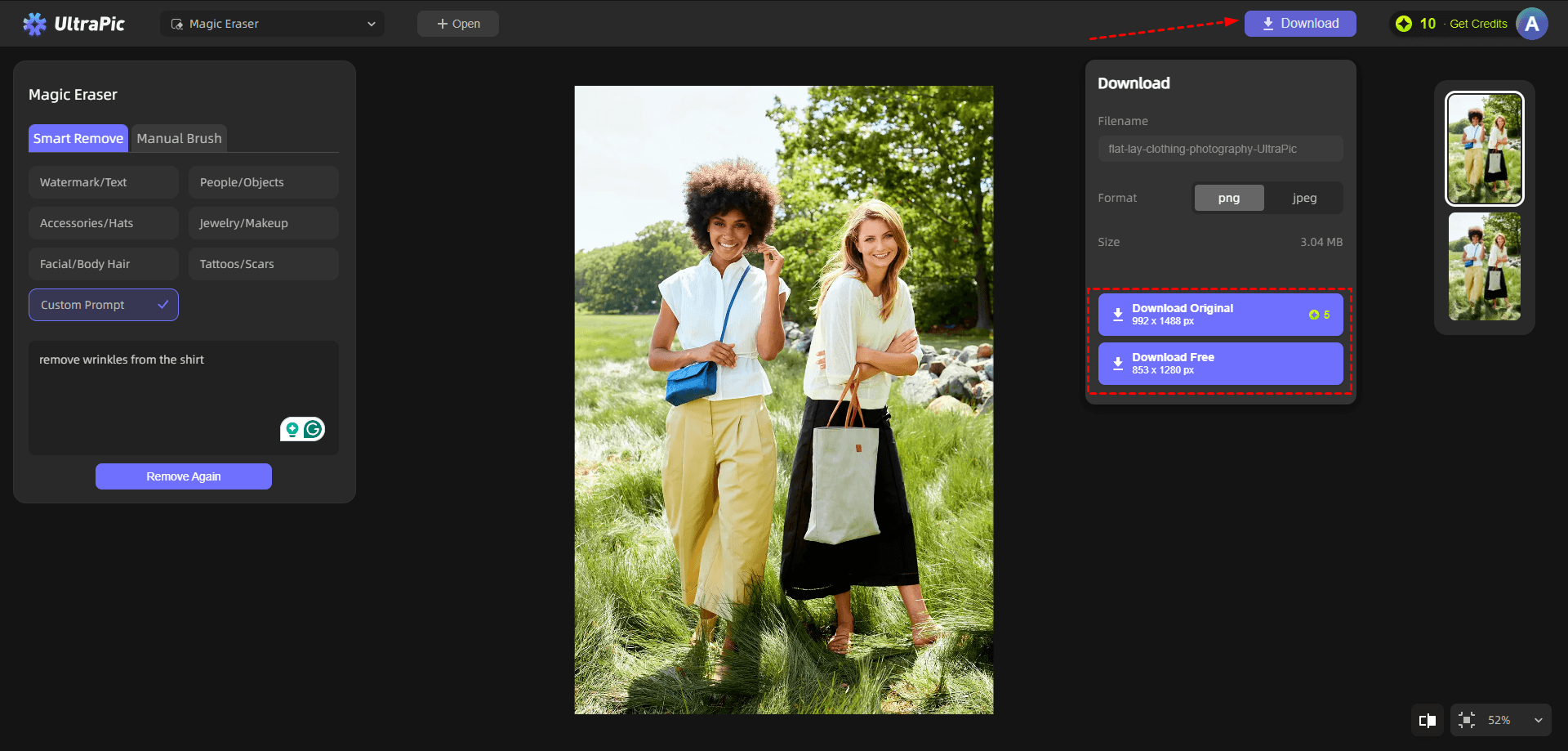
Step 3. After selection, it will remove the object from the photo and generate a result without affecting your original image. Click Download > Download Original or Download Free to save the edited photo.
Way 2. How to Remove Something from a Picture with Fotor
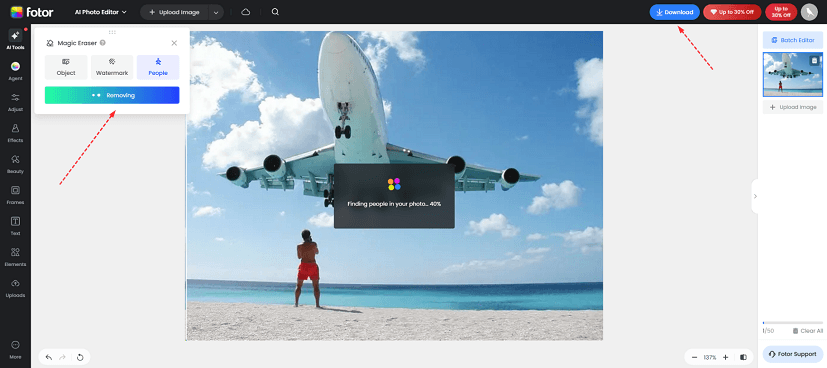
Fotor is a well-known all-in-one photo editing tool that offers a wide range of features, from filters and cropping to advanced retouching. Powered by AI, Fotor object remover allows you to remove people, watermarks, or other objects with quick select or using a brush. Here is how to remove someone from photo online using Fotor:
Step 1. Upload your image to Fotor Object Remover.
Step 2. Choose to remove object from background. Here, we choose to remove person from photo online free, it will then intelligently analyze objects in images. Click on Remove.
Step 3. When it’s done, click on Apply, and then Download to export the image.
Way 3. How to Remove Objects in Lightroom
Lightroom's object removal tool uses AI to erase unwanted objects seamlessly, and it offers more control than most tools. It's perfect for users who want to remove larger or more complex objects, as it lets you fine-tune the editing process to ensure the background looks natural.
You can use it online via a web browser or through the Lightroom desktop and mobile applications. The core feature for this, Generative Remove, allows you to highlight an object, which Adobe Firefly then removes while intelligently filling in the background. Follow the steps below to figure out how to remove objects in Lightroom:
Step 1. Go to Lightroom on the web and upload the image you want to edit.
Step 2. Go to the Remove tab on the left, and then select items to remove.
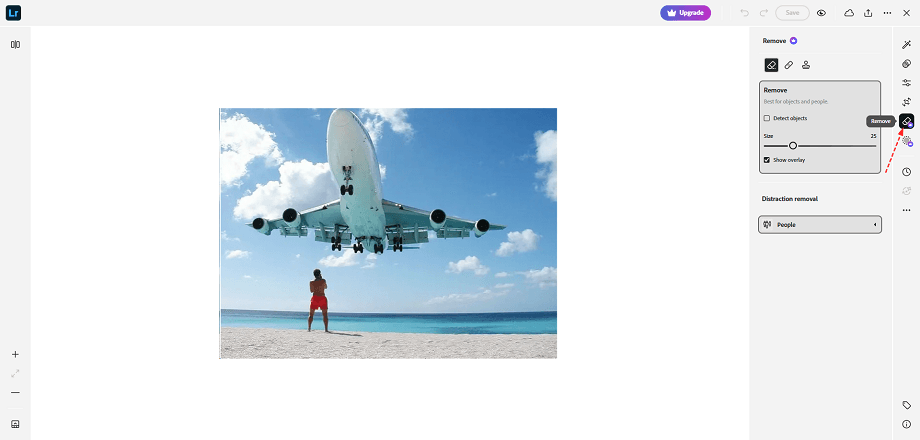
Step 3. Then, follow the on-screen guide to save and export the changed image.
Way 4. How to Erase Object from Photo Using Photoroom
Photoroom is a popular photo editing tool that's known for its background removal capabilities, but it also offers a powerful object removal tool that’s free to use online. What makes Photoroom unique is its focus on simplicity and speed - you can erase an object from a photo in just a few seconds, with minimal effort. It’s perfect for users who want to quickly clean up their photos without spending time on complex edits.
Photoroom's object removal tool is powered by advanced AI that can detect and erase unwanted objects automatically. Here is how to use Photoroom object remover to remove object from photo free online:
Step 1. Visit the Photoroom app and then upload the photo you want to edit.
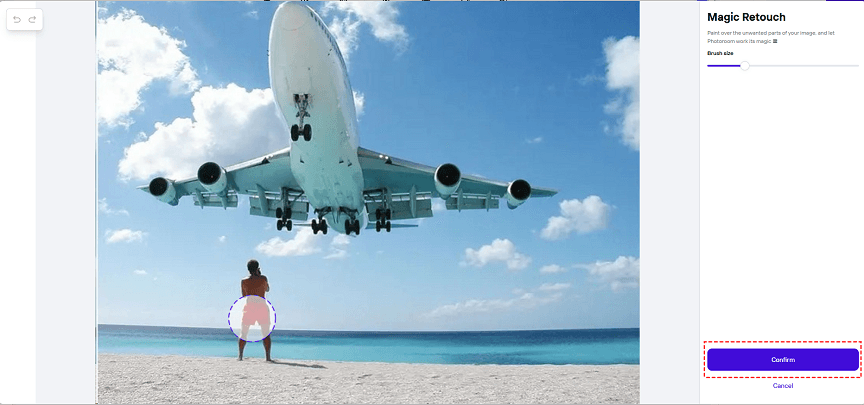
Step 2. Once your photo is loaded, click on Retouch in the right toolbar.
Step 3. Then, you can use the Magic Retouch Brush to paint over the unwanted parts of your image to erase them. After that, click Confirm.
FAQs on Object Removal from Photo
#1. What's the best free app for object removal?
The best app to remove object from photo online free depends on your needs. For quick and automated results, UltraPic is an excellent choice. If you want additional editing features, Fotor offers more versatility.
#2. Is there a free app to remove unwanted objects from photo?
Yes, online image editing tools like UltraPic allow you to remove unwanted objects from photos online free. You can give it a try!
#3. Does removing objects affect the original photo quality?
In most cases, no, at least not noticeably. Advanced AI photo editing tools reconstruct the background intelligently. However, quality may drop slightly if:
- The removed object is large
- The background is highly detailed
- The lighting is inconsistent
So, using high-resolution images helps maintain quality.
#4. What types of objects are hard to remove?
Some objects are more challenging than others. These include:
- Objects overlapping complex textures (like hair or grass)
- Shadows and reflections
- Large elements covering important details
- Objects in low-light or noisy images
In such cases, tools like Adobe Lightroom provide better manual control.
Summary
Removing an unwanted object from a photo no longer requires expensive software or advanced editing skills. With the help of AI-powered tools, you can easily remove objects from photo free online, right in your web browser. In this article, we’ve covered 4 of the best ways to do this, each with its own strengths.
If you don't know which to choose, try UltraPic, which is free, easy to use, and perfect for removing small to medium-sized objects quickly. Also, you can use it to remove watermarks or replace an object in an image with ease.

