

Photoroom Object Remover - Full Guide & Best Free Alternative
How to remove unwanted objects using Photoroom object remover? Here is a complete guide and introduce a free online alternative.

By Jonna Updated on April 23, 2026


Overview of Photoroom Object Remover
Photoroom is a popular AI-powered photo editing app and web tool, specially designed for e-commerce sellers, social media creators, and beginners. It focuses on fast background removal, object removal from photos, product photo enhancement, AI background generation, and one-click professional product staging.
The Photoroom object remover is built for users who want to erase unwanted items from an image quickly. That can include people, logos, stains, wires, signs, furniture, blemishes, or visual clutter. Rather than manually replacing pixels, the tool uses AI to analyze the surrounding area and reconstruct the selected region in a way that blends naturally.
Photoroom's Object Removal Tools
There is a Retouch tool that is specifically designed to handle object removal efficiently for Photoroom object eraser. Let's take a look at the tools it relies on first.
- AI-powered object selection that identifies unwanted elements quickly
- Brush tool for manual selection and fine-tuning
- Automatic background reconstruction after object removal
- Real-time preview to check edits instantly
- Undo and refine options for better accuracy
These tools work together to ensure that the removed area blends naturally with the rest of the image. In many cases, the edits are subtle enough that it’s hard to tell anything was changed. However, like any tool, Photoroom object remover has its limits. While it performs well on simple images, more complex backgrounds can sometimes require extra adjustments.
How to Remove Objects in Photoroom
Using Photoroom to remove objects is straightforward. You can follow the steps below to run Photoroom as an object remover.
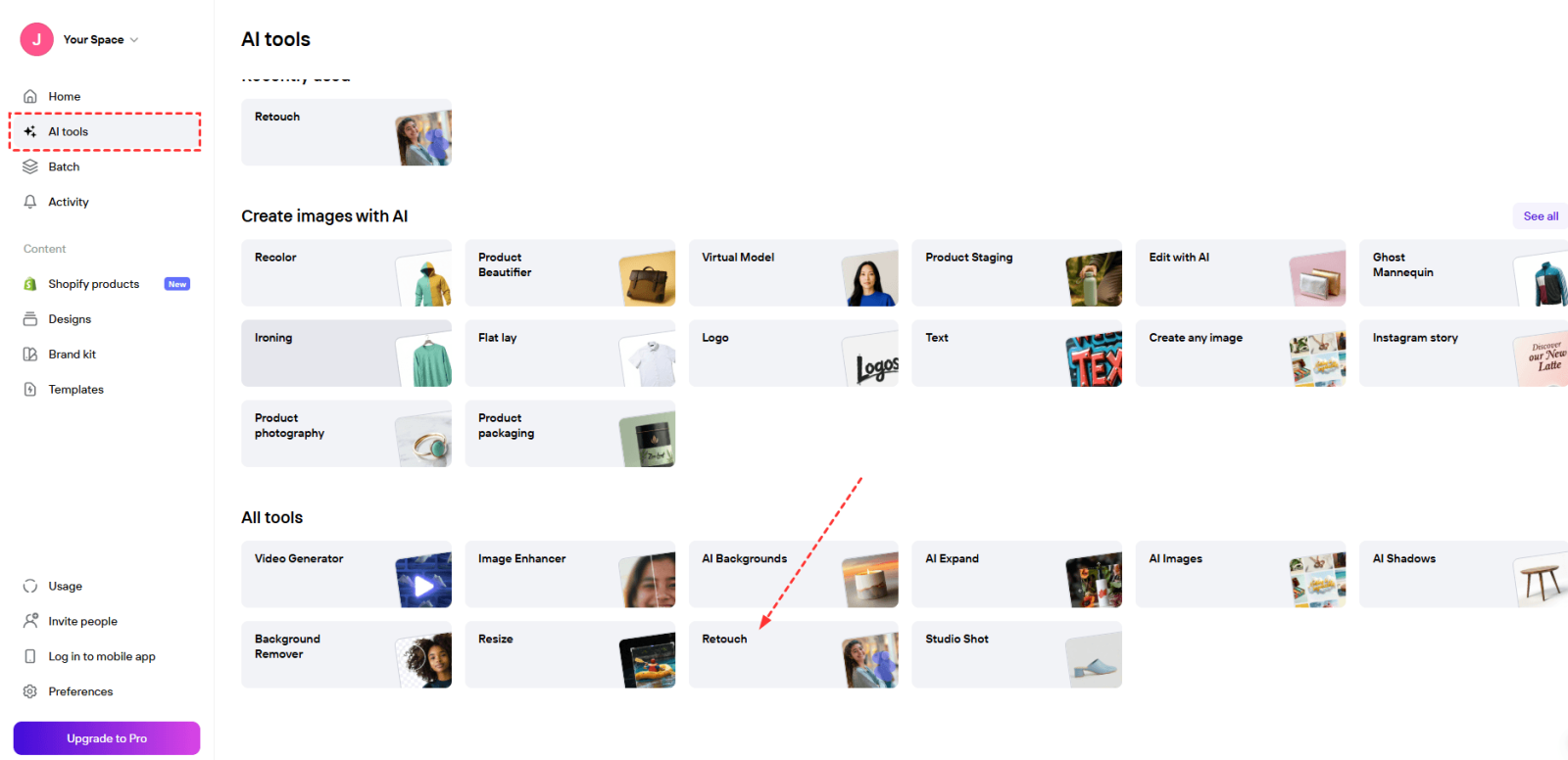
Step 1. Open Photoroom on the web. Click on AI tools from the left menu, and select Retouch under all tools.
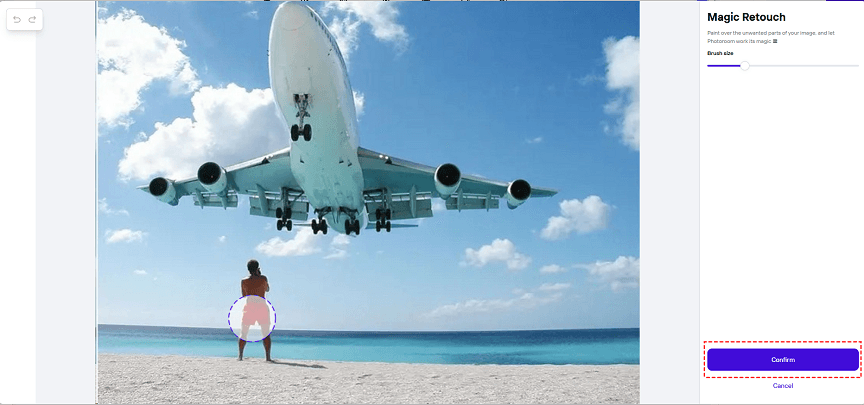
Step 2. Then, upload the image that you want to remove object from, and go to the Magic Retouch interface.
Step 3. Adjust the brush size according to the items you wish to erase, then paint over them, and wait for Photoroom to remove unwanted objects. You can repeat the object removal process to get the best result. Then, click Confirm > Download to export the final image.
👉Important tips for better results:
- Remove large objects in sections rather than one giant selection
- Use zoom for precise brushing
- Preserve straight lines like walls or shelves carefully
- Work gradually on textured surfaces
- Check the full image after editing, not just the zoomed area
Free Online Photoroom Object Remover Alternative - UltraPic
Photoroom is useful, but it isn’t the only option. If you want a faster and more accessible free tool, you may try UltraPic.

Remove Objects from Images with AI Easily
Make your images clean and professional.
- 1-Click to remove unwanted objects from photos
- Remove messy backgrounds in one click effortlessly
- Generate eye-catching custom backdrops for photos
- No design or editing skills needed, instant result


UltraPic is an AI-powered online image editor designed for photo cleanup and enhancement. It focuses on removing friction from common edits like object removal, watermark cleanup, background removal & replacement, and photo retouching.
✨Smart object removal - Brush over unwanted elements and let AI rebuild the scene with minimal effort.
✨Intelligentsurface reconstruction - Seamless blending of removed areas, useful on common textures, like walls, floors, sky, tables, packaging surfaces, and gradient backgrounds.
✨High-resolution export - Preserve the photo's high-quality with details, useful for sellers to improve product photos, freelancers to create ad assets, and content creators to fix quick visuals.
Now, let's take a look at how to use this software to remove objects.
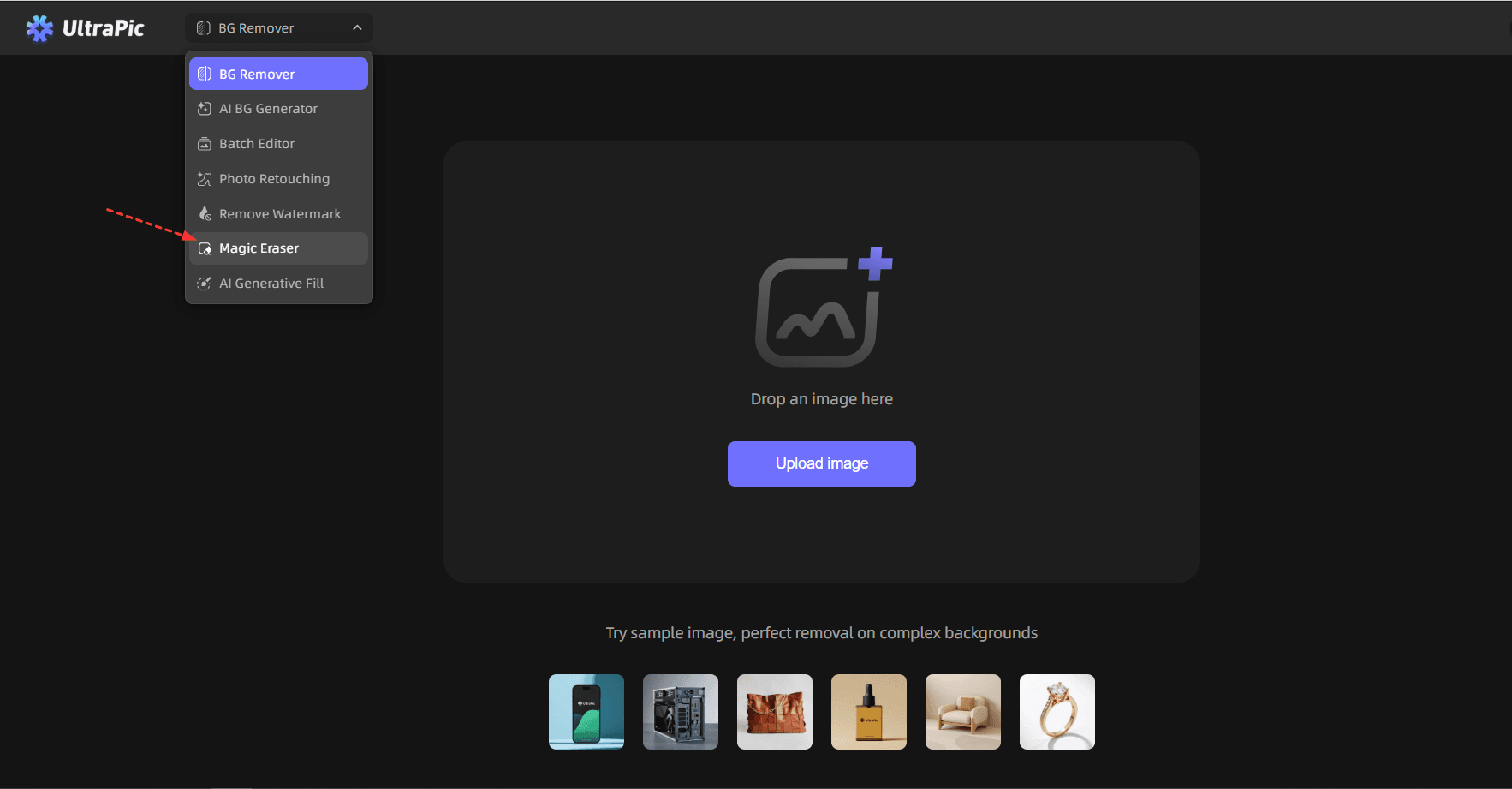
Step 1. Open the UltraPic app online using a browser, select Magic Eraser, and upload your photo.
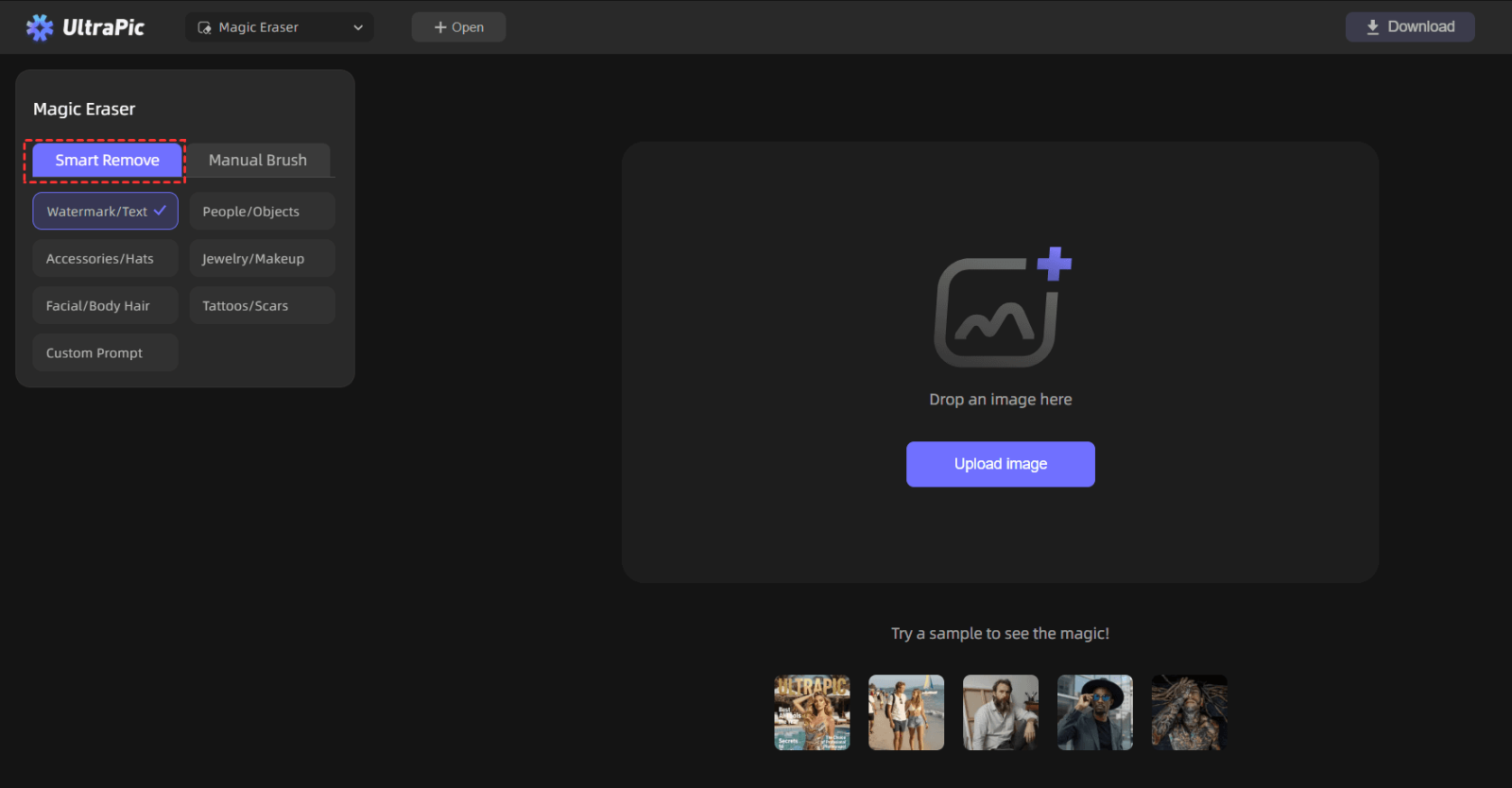
Step 2. Choose a specific item to remove under Smart Remove, like people, watermark, or click custom prompt to describe the items to remove.
Or, you can go to Manual Remove, and use the Brush or Marquee to paint over the area to remove on the canvas manually.
Step 3. Tap on HD Removal or Standard Removal to remove object from photo online free. Finally, click Download.
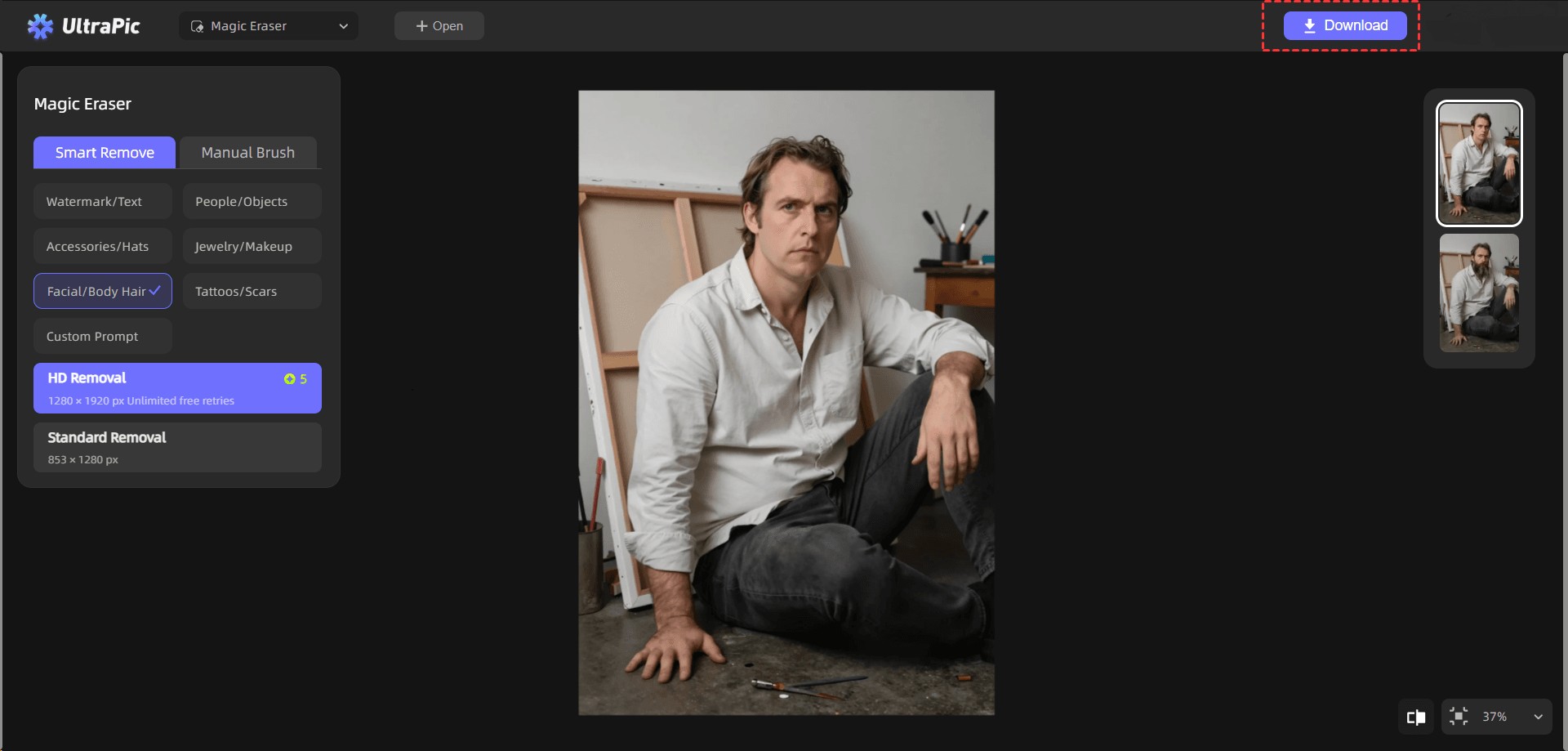
You can also use this app and go to Photo Retouching for one-click blemish fixing, AI Generative Fill for image filling & object replacement, Batch Editor for BG removal in batch, and so on.
FAQs on Photoroom Object Removal
#1. Can the photoroom object remover handle complex backgrounds easily?
It performs well on simple and moderately complex backgrounds. However, when dealing with intricate patterns or crowded scenes, the results may require additional refinement.
#2. Does the photoroom object remover preserve image quality well?
Yes, in most cases, it does a good job of maintaining image quality. The tool is designed to blend the removed areas naturally with the surrounding pixels.
That said, quality can vary depending on the complexity of the image. Simpler edits usually yield better results.
#3. Can the photoroom object remover remove large objects cleanly?
It can, but with some limitations. Large object removal often requires more processing and may result in visible artifacts if the background is complex. For best results, it’s recommended to remove large objects in smaller sections.
In the End
AI tools like Photoroom object remover make photo cleanup accessible, fast, and practical for users who don’t want to spend hours learning advanced editing software like Photoshop.
Also, alternatives like UltraPic are worth consideration, especially if you value browser-based simplicity and simple AI cleanup tools. This all-in-one free photo editing app also makes cosmetics retouching, profile picture background removal, and other tasks simple and effective for everyone.

