

How to Use GIMP to Remove Watermark - Full Guide
Can you use GIMP to remove watermark? Or is there an easier way to remove watermark? Read on to get the answer.

By Jonna Updated on April 28, 2026


Can GIMP Remove Watermark?
Short for GNU Image Manipulation Program, GIMP is an open-source image editor that offers a series of tools for photo editing, graphic design, and image manipulation. If you are wondering whether you can use GIMP to remove watermark, the short answer is: absolutely yes, but with a bit of manual effort.
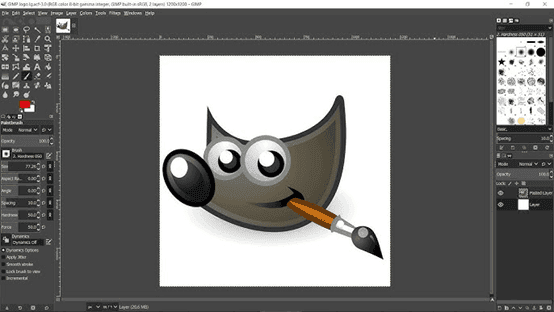
GIMP watermark removal relies on tools like the Clone Tool to copy pixels from a clean area to cover the watermark, the Heal Tool to automatically match lighting, texture, and tone while covering the watermark, the Crop Tool to cut out the part of the image with the watermark, or the Smudge Tool to smudge pixels to hide light watermarks.
In the following, we will show you how to use GIMP to remove watermark from image. If you want an easier watermark removal solution, try the free watermark remover below instead.
How to Use GIMP to Remove Watermark
As mentioned above, there isn't just one way to remove watermark in GIMP. Here is a step-by-step guide on using the most common and effective tool - the Clone Tool for watermark removal.
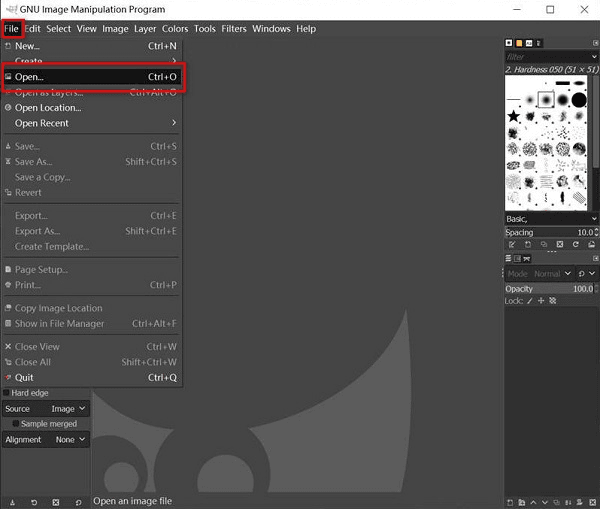
Step 1. Launch GIMP and import your image by going to File > Open and selecting your image.
Step 2. (Optional) Go to the Layers panel, right-click your image layer, and select Duplicate Layer to keep your original image intact in case you need to revert changes.
Step 3. Select the Clone Tool from the top right corner, which allows you to copy pixels from one part of the image and paint over the watermark.
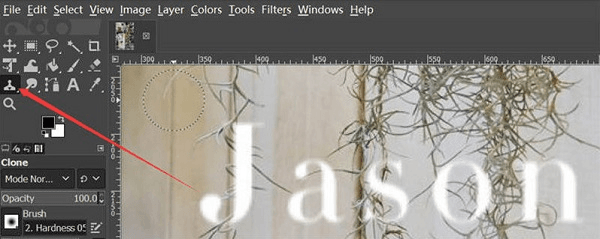
- Find an area that matches the background color and appearance of the watermark, and put the cursor over that area. Hold down the Ctrl key on your keyboard, then click the left mouse button.
- Click the left mouse button and hover the cursor around the watermark. The image within the selected area will then completely cover the area you have outlined or selected.
That's how to remove watermark from photo with GIMP. When it's done, you can then export and save the edited image.
✨More Tips:
- The steps to use GIMP to remove text from image are similar to watermark removal.
- For how to remove watermark from photo in Photoshop, you can use the Spot Healing Brush Tool or the Patch Tool from Photoshop.
- To remove watermark in Lightroom, you can select the Healing tool below Histogram. Then, select the removal mode and adjust the brush's size to paint over the watermark area with the brush.
Easier Way to Remove Watermark Online - UltraPic
UltraPic is an AI-powered online image editor designed to simplify complex tasks like watermark removal. Unlike GIMP removing a watermark, or manually removing a watermark in Photoshop, it automates the process, making it accessible even for complete beginners.

Remove Watermark Easiy with AI in Seconds
Get clean, transparent photos instantly with AI.
- Remove messy backgrounds in one click effortlessly
- Preserve every detail, keep edges sharp and clean
- Generate eye-catching custom backdrops for photos
- No design or editing skills needed, instant result


It offers automatic detection and removal for semi-transparent watermarks, text, logos, and lines, and manual removal using a marquee or brush. With high-quality background reconstruction, its advanced AI helps preserve textures, patterns, and details even when watermarks sit on complex backgrounds like fabric, wood, or gradients. And it supports various image formats, including PNG, JPEG / JPG / JFIF / PJP / PJEPG, WEBP, BMP, and so on.
Also, it is embedded with other image editing functions like background removal & generation, AI generative fill, object removal, etc. It's especially useful for quick edits, social media content, and product images where time matters more than pixel-perfect control.
Step 1. Visit the UltraPic Watermark Remover and upload your image file.
Step 2. Choose the removal mode:
🟢Auto Mode: Select HD Removal or Standard Removal to get the edited image.

🟢Manual Mode: Highlight the area you want to remove, and then click HD Removal or Standard Removal.

Step 3. Click Download to export the image with the watermark removed.
FAQs on GIMP Watermark Removal
#1. How do I remove a logo in GIMP?
Removing a logo in GIMP follows the same principles as watermark removal. You will primarily use the Clone Tool or Heal Tool.
Start by selecting the logo area, then carefully clone nearby pixels to cover it. For best results, work slowly and blend edges using the Heal Tool.
#2. Can Gimp remove watermark from video?
No, GIMP cannot remove watermarks from video files.GIMP is strictly an image editing tool. If you’re dealing with video, you’ll need software specifically designed for video editing. Tools like video editors or AI-based platforms are better suited for that task.
However, you can extract frames from a video, edit them individually using GIMP, and then reassemble the video - but that's time-consuming and rarely practical.
#3. Does GIMP have a watermark removal plugin?
Yes, GIMP can remove watermarks using the Resynthesizer plugin to intelligently fill in areas. While not a native one-click tool, this plugin, along with built-in tools like the Healing Tool and Clone Tool, allows for effective manual removal of watermarks and text.
Conclusion
Removing watermarks isn't always straightforward, but with the right approach, it's entirely doable. GIMP offers a powerful, free solution for those willing to invest time and effort. Its manual tools provide unmatched control, making GIMP remove watermark techniques ideal for detailed and precise edits. But tools like UltraPic offer a faster, more convenient alternative, especially for everyday tasks.

