

Image Enhancer Prompt Guide

What is Prompt Guidance?
The Image Enhancer tool is equipped with an optional “Prompt Guidance” feature. It allows you to direct the AI to optimize specific details during the image enhancement process, giving you more control over the final result.
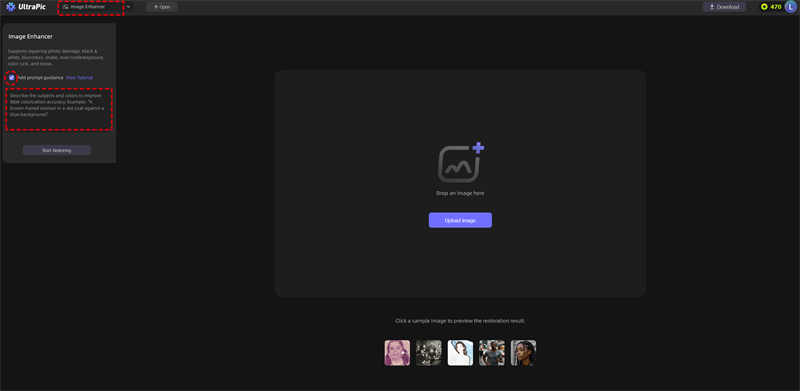
When to Use Prompts
We recommend using prompts in the following scenarios:
Specifying Colors: When you need to define specific colors for objects (e.g., clothing, hair).
Enhancing Textures: To emphasize specific materials like metal, silk, or wood.
Refining Details: To optimize specific local details that the AI might miss.
Note: For general restoration or standard enhancement, it is not recommended to use prompts. The AI works best automatically for general tasks.
Capabilities: What Prompts Can & Cannot Do
| Can Do ✅ | Cannot Do ❌ |
|---|---|
| Adjust colors (most common use case) | Change a person's identity or facial features |
| Optimize material/texture representation | Modify composition, pose, or structure |
| Fine-tune local details | Add or remove elements from the scene |
| Transform the image into a completely different style |
How to Write Effective Prompts
1. Focus on Specific Objects
Be precise about what you want to modify rather than using vague terms.
Like: "The girl has blonde hair." / "The man is wearing a dark blue suit."
Not: "Make the colors look nicer."
2. Keep it Simple and Direct
Use natural language descriptions. You do not need complex sentence structures.
Like: "The girl is wearing a red dress." / "The table is made of wood."
3. Describe Visible Details
Concrete, visible features are easier for the AI to recognize and render.
Like: "Water droplets on skin." / "Silk dress with a glossy sheen." / "Light yellow wall with slight texture."
4. Limit the Scope
Adjust only a few elements at a time to avoid conflicting instructions.
Like: "The girl has brown hair and is wearing a white cotton dress."
Not: "Change to modern style, make colors vibrant, and add background elements."
Examples
Portrait Optimization
Prompt: "The girl has brown hair and is wearing a white dress."
Result: Colors appear more natural, and character details are sharper.
Old Photo Colorization
Prompt: "The clothes are dark blue, and the wall is beige."
Result: The colorization matches the expected reality more closely.
Material Enhancement
Prompt: "The table is wooden with visible grain texture."
Result: Material details are significantly more distinct.
FAQ
Q: The prompt didn't work. Why?
A: Please check if your description was too vague or if you requested an impossible modification (such as changing the structure of an object).
Q: Can I write many prompts at once?
A: It is not recommended. Using too many prompts increases the likelihood of conflicting instructions, which can lead to unstable or unpredictable results. Stick to 1-2 key descriptions.