

Icons8 Background Remover: Overview, Full Guide, and Best Alternative
Learn what the Icons8 Background Remover is, how to use it, and the best free online alternative to remove background with 1-click.

By Jonna Updated on May 18, 2026


Overview of Icons8 Background Remover
Icons8 Background Remover is an AI tool designed to automatically separate the subject of an image from its background. It is part of the broader Icons8 ecosystem, which includes icons, illustrations, photos, and design utilities aimed at modern creatives. You can use it as a free 4K background remover, and it is available in multiple forms:
- As a web-based background remover (Free for 3 image background removals)
- As a Figma background removal plugin (100% free - No limits on the number of images.)
- As part of Icons8's broader design tools ecosystem

And the main features that Icons8 Background Remover offers include:
👉 Integrated directly with Figma, reducing context switching
👉 Support people, products, and common objects
👉 Produce clean cutouts suitable for UI mockups and marketing visuals
👉 Align well with design systems already using Icons8 assets
👉 Transparent PNG output
👉 Web-based usage without heavy software
👉 Batch processing (paid plans)
How to Use Icons8 Background Remover in Figma
One of the biggest advantages of Icons8 Background Remover is its Figma plugin. For designers already living inside Figma, this workflow feels natural and efficient. Here are the steps to remove a background using Icons8 background remover in Figma:
Step 1. Go to Figma, click on Resources, search for Icons8 Background Remover, and install the plugin.
Step 2. Choose the image layer in Figma that you want to process, search for the plugin, and run it with Remove background.
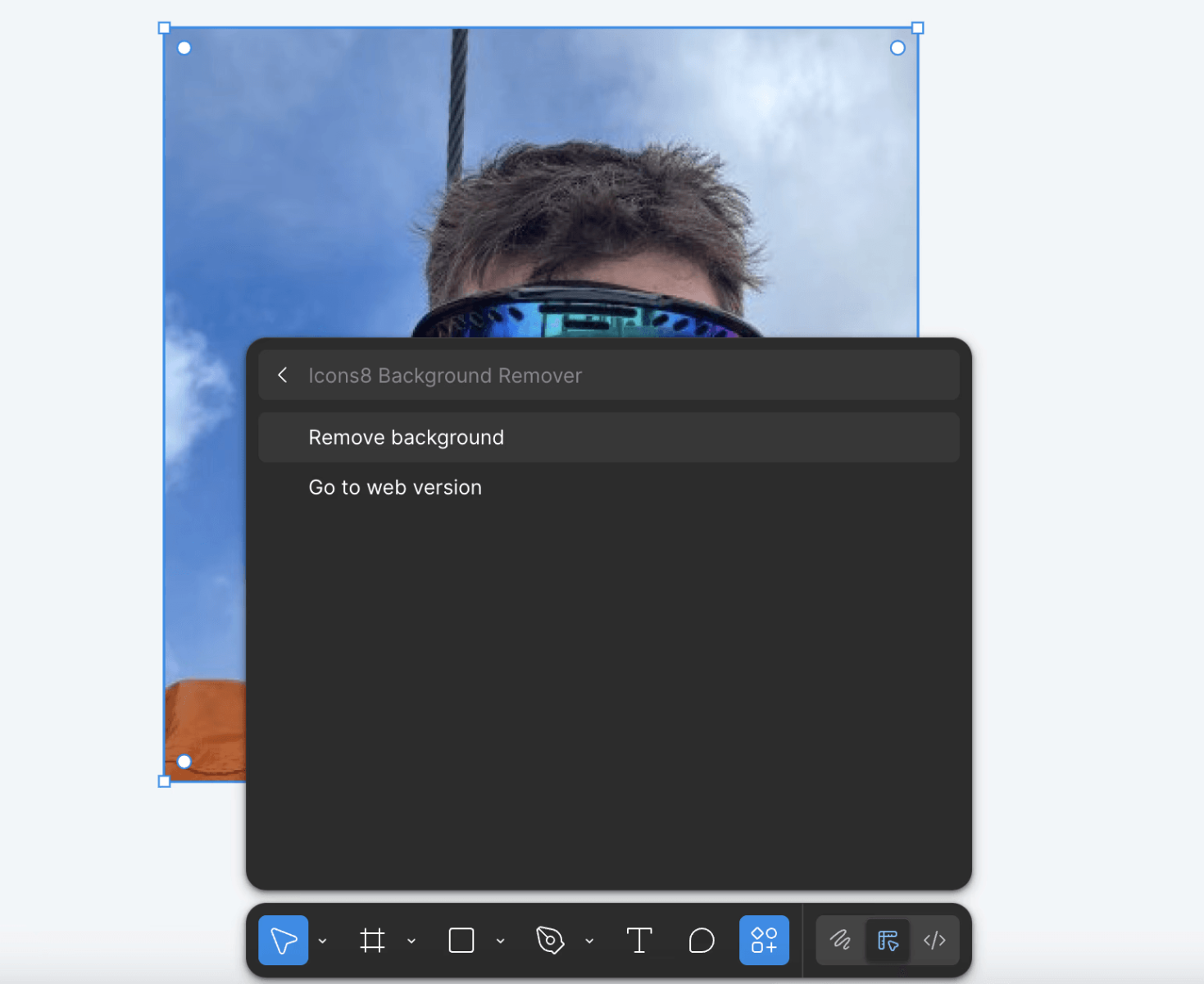
Step 3. Then, Icons8 removes the background with AI. The result replaces or overlays the original image in your Figma canvas.
How to Remove Background in Figma without Plugin
Not everyone wants to rely on plugins. Some teams limit plugin usage for security reasons, while others prefer manual control. Although Figma does not include a native background removal feature, it still offers workable options. These methods require more effort, but they can be effective in specific scenarios. Here are hoow to perform background removal without Icons8 background remover plugin in Figma.
Method 1: Using Figma Masking (Manual Approach)
This method is time-consuming but gives precise control for simple shapes or logos.
Step 1. Place your image on the canvas.
Step 2. Zoom in on the image to see and select the edges of the subject clearly, then select the Pen icon from the toolbar or press P. Then, start at the bottom of your image, click to create your first node, move around the subject and click to create more nodes.
Step 3. From the right sidebar, select Fill, and the fill color will be gray by default.
Step 4. After applying fill, remove the stroke by clicking the Minus icon next to the stroke properties in the right sidebar. Next, move the vector layer below your original image in the layers panel.
Step 5. Finally, select both the vector and the original image together. Go to the toolbar, then click Use as mask.

Method 2: Adjusting Image Fill and Blend Modes
For images with solid backgrounds, you can sometimes "fake" background removal.
Step 1. Select the image.
Step 2. Go to Fill → change blend mode (e.g., Multiply).
Step 3. Place it over a matching background color.
Alternative Online Background Remover - Free & 1-Click Removal
Here is also another practical option - relying on a free online background remover like UltraPic. UltraPic is an AI-powered online background remover designed for fast, high-quality results with minimal friction. Unlike plugin-based tools, it works entirely in the browser.
This tool allows you to perform background removal without sacrificing quality. Except for that, it also can work as a reliable photo editing software to generate new backgrounds and retouch photos with ease. Here are some of its features that stand out.

Remove Backgrounds from Images in Seconds
Get clean, conversion-ready product photos instantly with AI.
- 100% automatic background removal for image
- Preserve every detail, keep edges sharp and clean
- Batch backdrop removal for multiple product images
- Save hours of manual editing using our AI tool now


📢 One-Click AI Background Removal: It can accurately detect and remove backgrounds from images, saving hours of manual editing.
📢 Background Generation: It can also generate new bg to match the style of the original photo.
📢 Batch Photo Editing: It is able to edit multiple photos at once, perfect for e-commerce sellers and photographers.
📢 Photo Retouching: You can easily improve portraits, remove flaws, and beautify images by smoothing out skin to enhance imagesinstantly.
Step 1. Go to the UltraPic Background Remover, upload your photo by dropping it or using the Upload button.
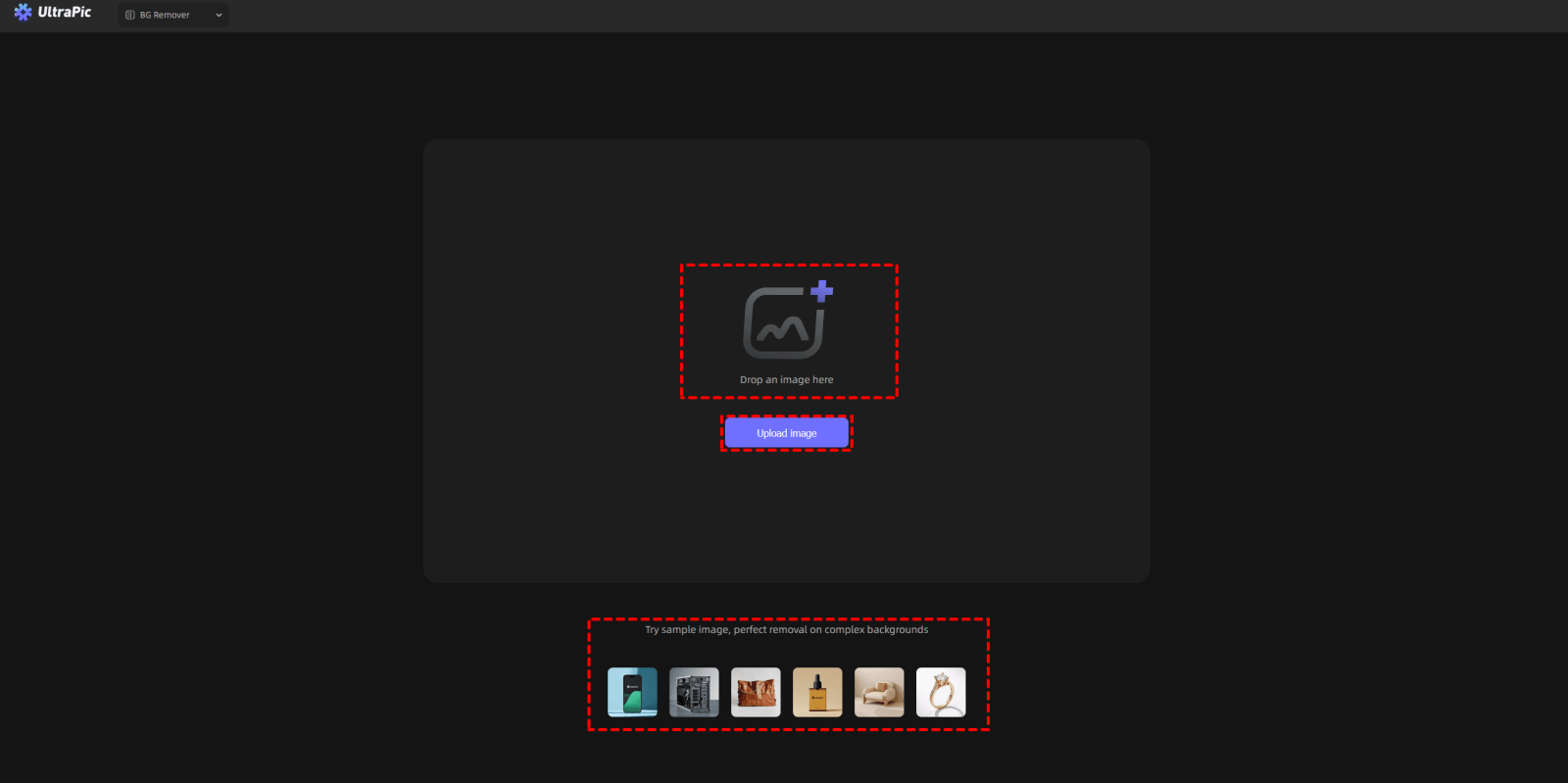
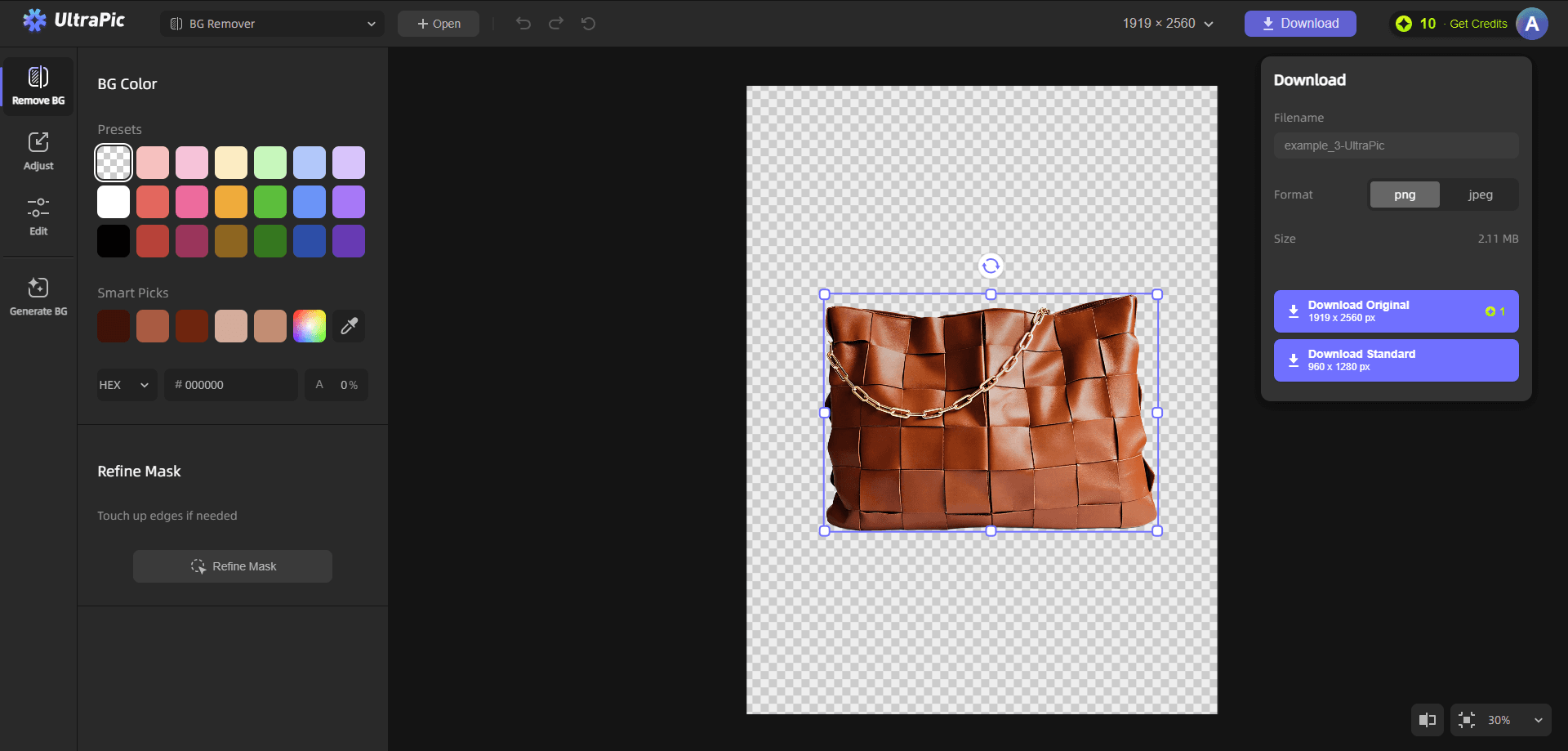
Step 2. After uploading, the UltraPic tool automatically detects and removes the background, leaving only a transparent result. You can simply click Download Original to save the cleaned image with high resolution.
👉Tips:
- You can use it to remove BG from signatures, product images, portraits, and so on.
- To change the background, click on Generate BG, and here are 3 sub-options for you: choose from various pre-designed styles, upload a reference background image, or describe the background using text.
- To batch edit photos, select Batch Editor on the top, and then you can start editing multiple photos at once.
Summary
Icons8 Background Remover has earned its place as a popular AI tool - especially for designers embedded in Figma. Its plugin-based workflow is convenient, and for quick mockups, it gets the job done. However, it’s not always the best solution. Plugin dependency, limited free exports, and lack of fine control can become friction points. That’s why knowing how to remove background in Figma without plugin is just as important.
For users who want free access, one-click simplicity, high-quality transparent results, and no tool lock-in, an alternative like UltraPic offers a clean, efficient path forward. It works perfectly for marketers, freelancers, and small teams who may prefer the speed of an online background remover solution. What matters most is having a reliable way to turn raw images into clean, usable visuals, without slowing creativity down.

