

How to Change Background Color on Shopify - Full Guide
Want a more attractive Shopify's background color? On this page, you will learn how to change the background color on Shopify easily and an online free Shopify AI image editor for sale boosting.

By Jonna Updated on March 23, 2026


Can I Change Shopify Background Color?
Shopify is a leading all-in-one cloud-based e-commerce platform that allows individuals and businesses to create, manage, and grow professional online stores without coding or technical skills. It provides everything you need to sell physical products, digital goods, or services online, including building a fully functional, mobile-friendly online store, listing products, managing inventory, processing orders, handling shipping, and more.
Shopify allows store owners to build an online store with custom themes. That is to say, you are able to change background colors easily. Most Shopify themes include built-in customization settings that allow you to adjust colors without writing any code. Through the theme editor, you can modify the background color for different parts of your store, including the homepage, product pages, and sections. Now, let’s get down to how to change background color on Shopify.
How to Change Background Color on Shopify
For Shopify how to change background color, the process is straightforward and can be completed in just a few minutes. It can be done using the theme customization panel.
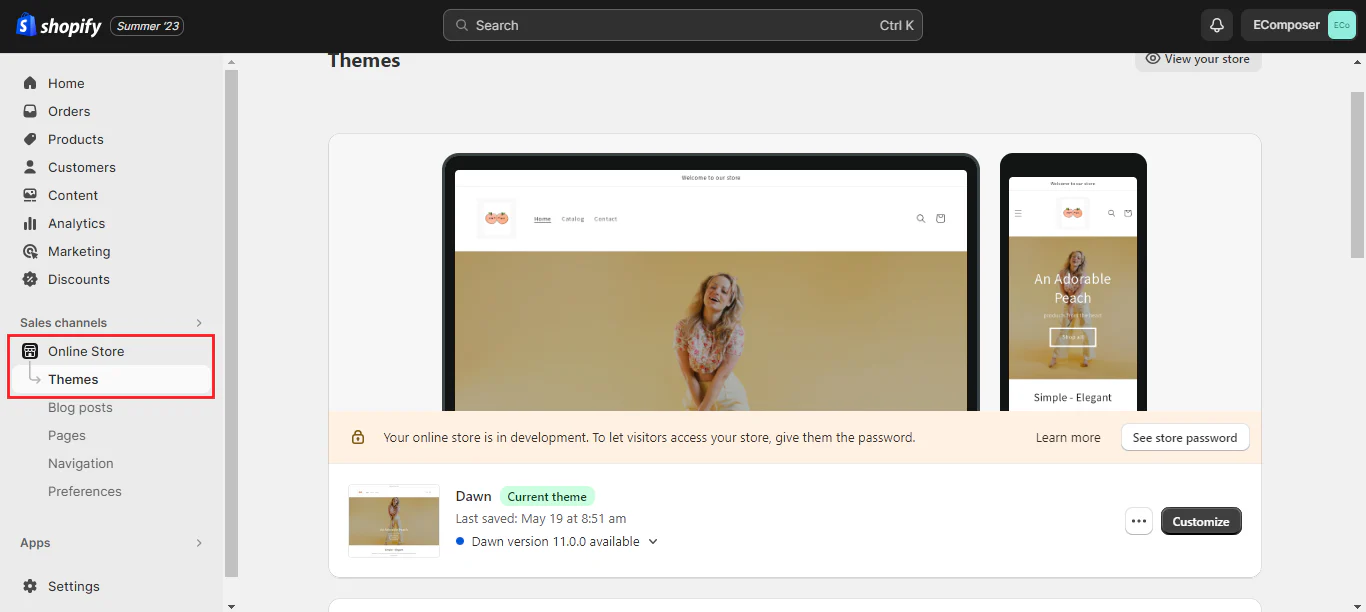
Step 1. Sign in to your Shopify account and access the admin panel. In the left sidebar, click on Online Store and then select Themes.
Step 2. Choose a theme that contains the section you want to change color and click Customize.
Step 3. At the theme's edit page, tap Theme settings. Click Color, then all colors installed in your theme will appear.
Step 4. After that, go to the section you need to change the background color. In the Rich text editing window, click Color scheme to choose a color.
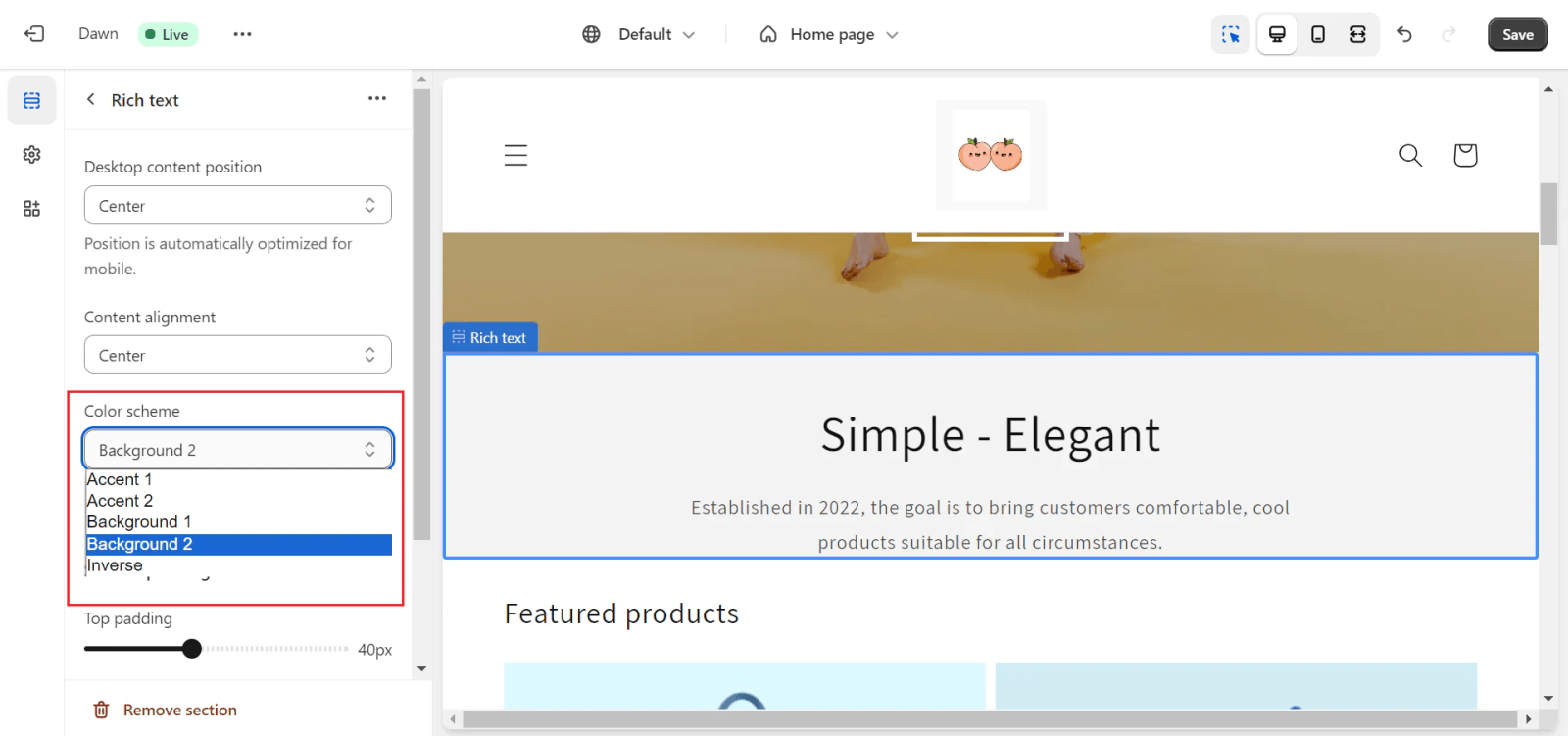
Step 5. Then, click Save.
Additional Information: How Do I Turn off Dark Mode on Shopify?
Except for how to change background color in Shopify, dark mode has become a popular feature in many modern interfaces. Some Shopify themes automatically adapt to dark mode settings depending on the user’s browser or operating system preferences.
While dark mode can improve readability in low-light environments, it may not always align with your store’s branding or product presentation. Certain product images, especially those with dark backgrounds, may become harder to see when displayed on a dark website interface. Turning off dark mode usually involves modifying theme settings or adjusting CSS rules.
Step 1. Open the Shopify admin panel and navigate to the Themes section.
Step 2. Click Customize to open the theme editor.
Step 3. Look for appearance or color scheme settings.
Step 4. Disable dark mode if the theme includes this option.
Step 5. Save the changes and preview the storefront.
Easy Shopify AI Image Editor to Edit Product Images
Changing background colors on your website is only one part of creating an attractive Shopify store. Product images themselves also play a crucial role in influencing customer decisions. High-quality Shopify images with clean backgrounds make products appear more professional and trustworthy.
AI-powered image editor tools like UltraPic help Shopify store owners quickly improve product photos. It helps to simplify complex editing tasks such as background removal, lighting adjustments, and object cleanup. This tool includes several advanced editing features designed for e-commerce photography.

Create Studio-Quality Product Photos with AI
Make product images clean, professional and conversion-ready.
- AI background removal - Auto remove messy backgrounds in 1-click
- Background generation - Replace bg with clean colors or studio-style settings
- Object removal - Erase unwanted elements from photos simply & easily
- Batch processing - Edit multiple product images at once
- Photo retouching - 1-click turn ordinary product photos into professionally lit


Here are the steps on using UltraPic to edit Shopify images:
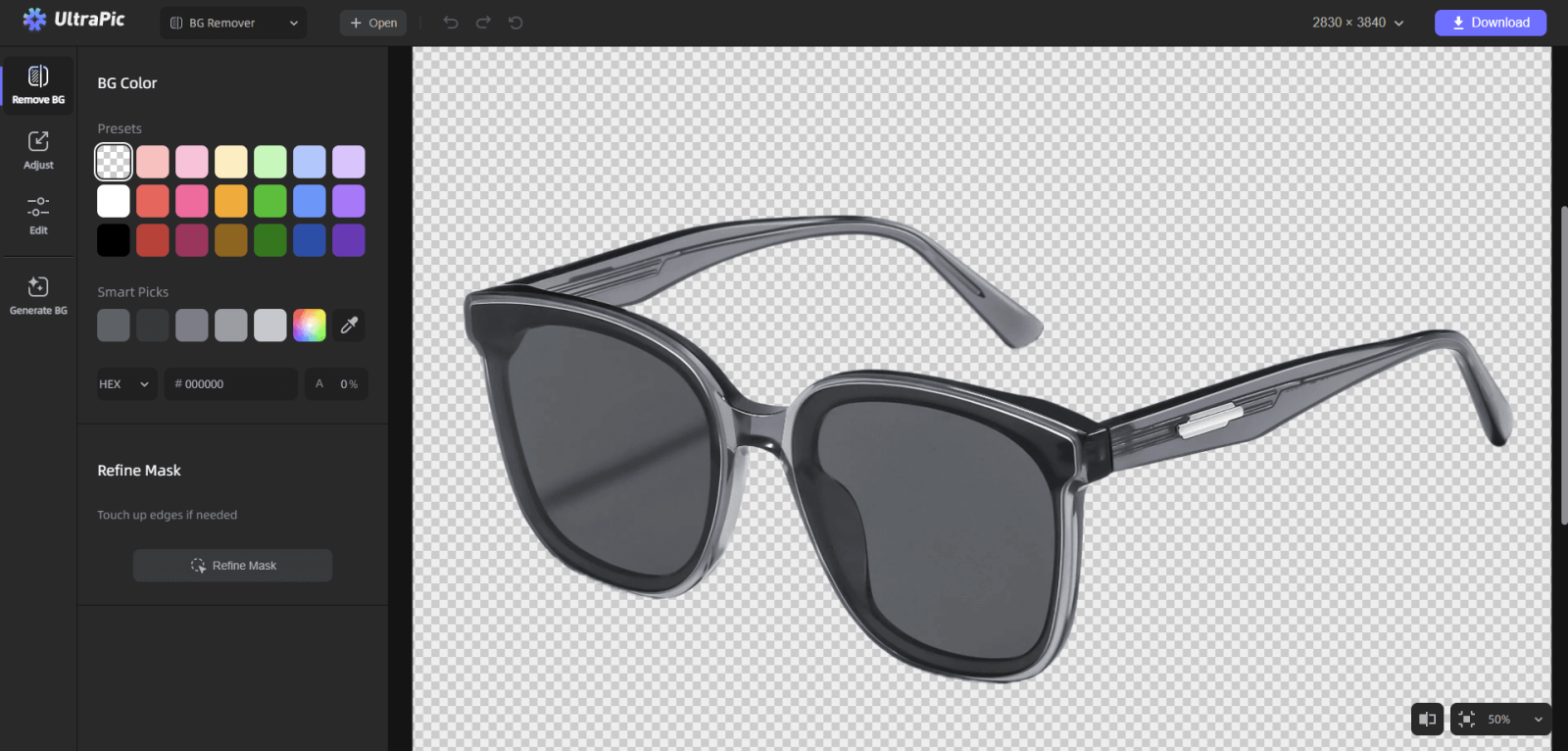
Step 1. Drag or drop to upload the original product image to the UltraPic editor. Its Background Remover will automatically detect the subject, and instantly remove the unwanted background - creating a clean, white background that meets Sposify’s main image requirements.
Step 2. Choose white color and generate compliant white backgrounds. You can also click Generate BG to change the backdrop as needed.
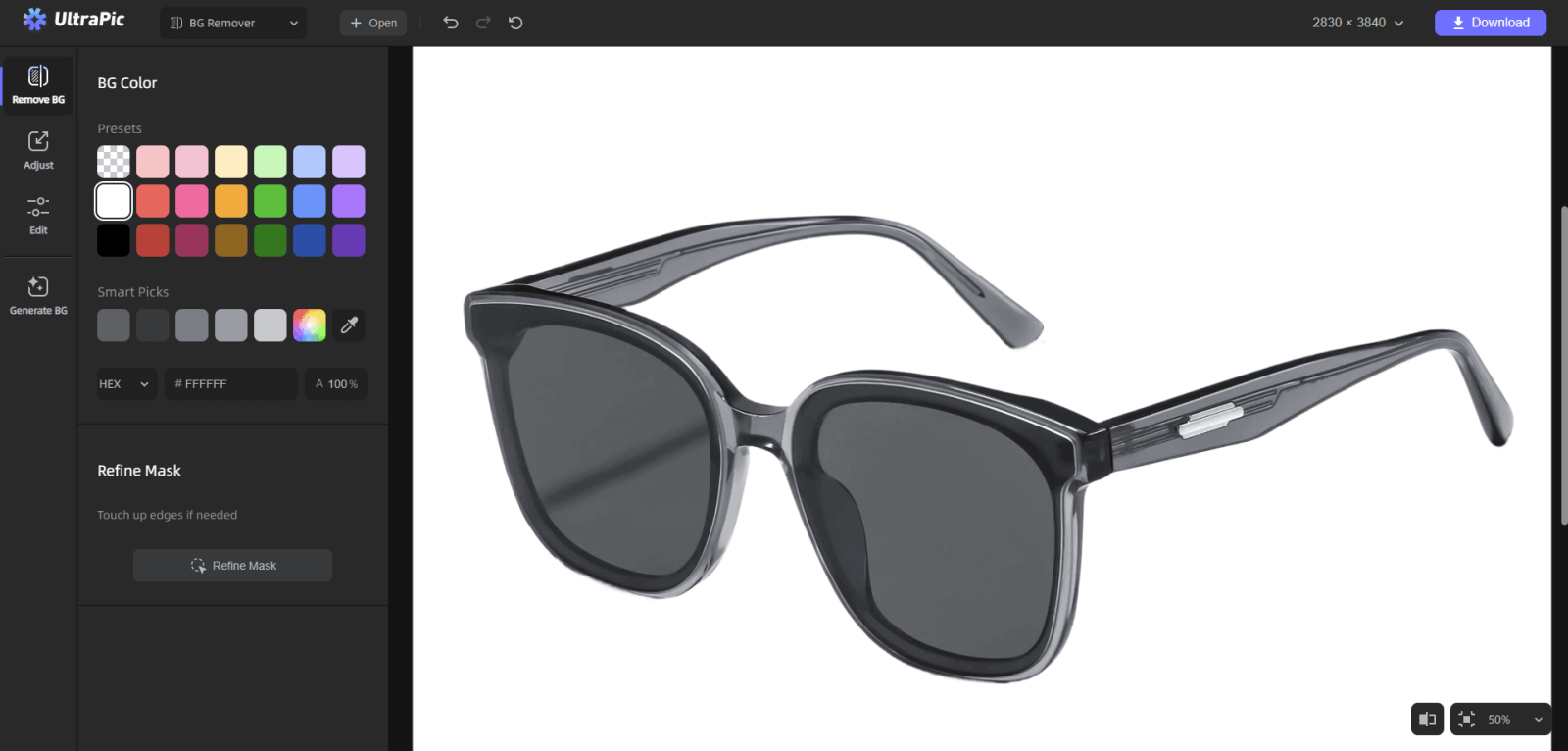
Step 3. Click Download to get a high-resolution finished product image.
To process multiple images, go to the UltraPic Batch Editor and upload images for quick processing. You can also use it for photo retouching to enhance images for professional use.
In the End
Customizing your store design is one of the most important steps in building a successful online shop. Learning how to change background color on Shopify allows you to create a visually appealing storefront that aligns with your brand identity.
Also, improving product images is just as important as refining website design. AI-powered tools like UltraPic help you to create clean, professional product pictures that attract customers and increase engagement.

