

How to AI Upscale in Photoshop - 3 Ways & Best Free Alternative
This guide breaks down how to AI upscale in Photoshop and offers the best free AI image upscaler to enhance images online easily.

By Jonna Updated on July 6, 2026


Can You Upscale an Image in Photoshop?
AI upscaling is a technique that uses artificial intelligence to increase the resolution of an image while adding realistic detail rather than just stretching pixels. And yes, Photoshop allows users to upscale images, and in recent versions, it even includes AI-powered enhancements that improve quality during enlargement. Instead of simply stretching pixels, modern Photoshop tools analyze image structure and attempt to reconstruct missing details.
In the following, we will show you how to AI upscale in Photoshop using 3 features - Generative Upscale, Super Resolution, and Preserve Details2.0; also, there is another free image upscaler that allows you to perform 4K image upscaling or higher upscaling online easily. And now, let’s take a look at how these 3 Photoshop upscaling tools stack up against each other:
|
Feature |
Generative Upscale |
Super Resolution |
Preserve Details 2.0 |
|
Max scale |
Up to 4x |
Fixed 2x only |
Adjustable, no fixed cap |
|
Supported formats |
JPG, PNG, TIFF, most standard formats |
RAW, DNG, TIFF, HEIC only |
Any standard format |
|
Subscription required |
Yes |
Yes |
Yes |
|
Advantages |
Strong at reconstructing realistic visual details, but may alter some elements |
Very high clarity with natural detail retention |
Good balance, especially for edges and text sharpness |
|
Disadvantages |
Can slightly change original details or textures |
Requires a compatible workflow and larger processing |
Less powerful than AI methods for complex images |
|
Use cases |
Portraits, general photos, complex images with faces and objects |
High-quality photo enlargement, especially RAW images |
Text, graphics, and moderate image resizing |
How to AI Upscale in Photoshop with Generative Upscale
Among Photoshop's newest AI-powered features, Generative Upscale represents one of the most exciting developments, available as of Photoshop 2026 (version 27.0), released in October 2025. Instead of relying solely on interpolation, it generates realistic details using Adobe Firefly AI. Generative Upscale focuses on creating believable image details during enlargement.
However, some users reported that there may be Photoshop Generative Upscale greyed out or Generative Upscale Photoshop not showing error. Here is how to use AI upscale in Photoshop through Generative Upscale:
Step 1. Open a low-resolution image in Photoshop and press Ctrl/Cmd + 1 to view it at 100%, so you can clearly see how much detail is currently missing.
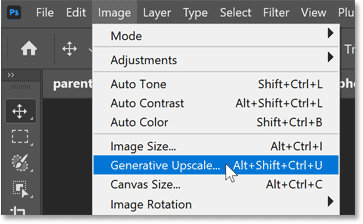
Step 2. Go to the Image menu and select Generative Upscale.
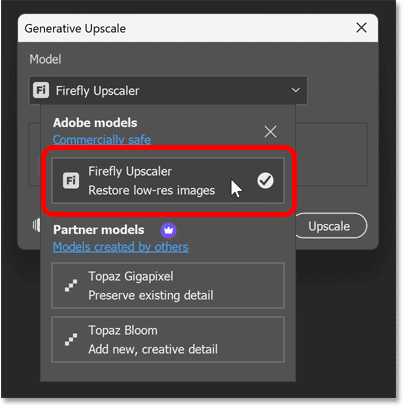
Step 3. In the dialog box that appears, choose your preferred AI model: Firefly Upscaler for restoring old or degraded images, Topaz Gigapixel to preserve existing detail more faithfully, and Topaz Bloom for adding new, creative detail.
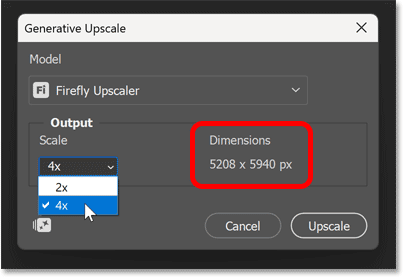
Step 4. Select your desired magnification factor, typically up to 4x, which will increase the image size to 5208 x 5940 pixels.
Step 5. Click the Upscale button and let Photoshop process the image. It will automatically generate a brand-new file, so your original stays untouched.
How to Photoshop AI Image Upscaling using Super Resolution
Super Resolution is another powerful AI-based method, which is designed to dramatically increase resolution while preserving fine detail. It lives inside Adobe Camera Raw and is specifically designed for RAW, DNG, TIFF, and HEIC files. If you're working with JPEGs or PNGs, unfortunately, this particular tool won't be available to you. Learn how to AI upscale in Photoshop via Super Resolution below:
Step 1. Open your RAW (or supported) file in Photoshop, which will automatically launch it inside the Camera Raw dialog.
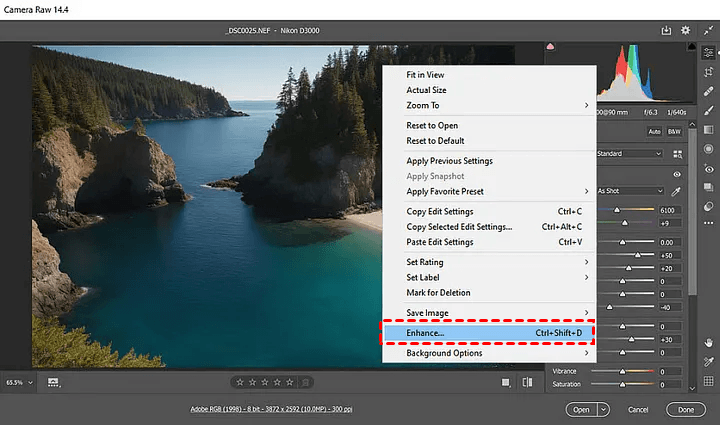
Step 2. Right-click anywhere on the image preview and choose Enhance, or simply use the keyboard shortcut Ctrl/Cmd + Shift + D.
Step 3. In the dialog that appears, make sure the Super Resolution checkbox is selected.
Step 4. Review the estimated processing time, which can range from roughly 30 seconds to a couple of minutes depending on file size.
Step 5. Click Enhance and let Photoshop process the image in the background. Once finished, a new, larger file will be saved automatically, typically as a DNG, alongside your original.
How to Perform Photoshop AI Upscale using Preserve Details 2.0
Preserve Details 2.0 is the most traditional of the three methods, though it still leans on smarter algorithms than old-school bicubic resampling. It's tucked inside the standard Image Size dialog, making it the most familiar entry point for anyone who's used Photoshop for resizing before. You can figure out how to upscale an image in Photoshop using its Preserve Details 2.0 feature:
Step 1. Open your image and navigate to Image, then Image Size.
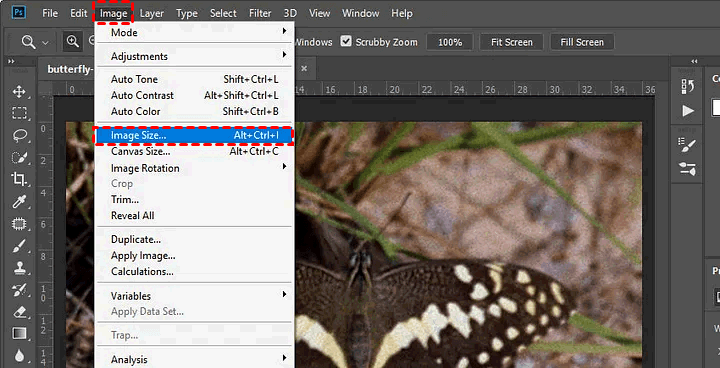
Step 2. Make sure the Resample checkbox is ticked, and confirm the link icon between width and height is active to avoid distorting the image.
Step 3. From the resampling method dropdown, select Preserve Details 2.0. Then, enter your target dimensions or scale percentage.
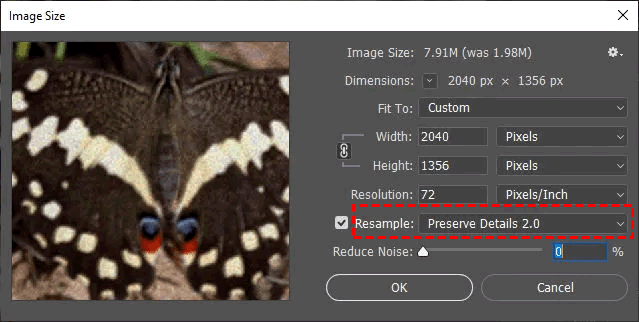
Step 4. Use the noise reduction slider that appears to smooth out any grain introduced during the enlargement process.
Step 5. Zoom into the preview at 100% to check for artifacts before committing. Click OK to apply the changes.
Best Free Online Alternative Image Upscaler - UltraPic
While Photoshop offers powerful tools, not everyone has access to paid software or high-performance systems. This is where UltraPic becomes a strong alternative. UltraPic is a browser-based AI tool designed to upscale images quickly and efficiently without installation. It is especially useful for users who want a simple solution for image enhancement without learning complex workflows. Also, UltraPic offers much more than simple image enlargement:

Upscale Your Images Without Losing Quality using AI
Turn small, blurry or pixelated photos into crisp, high-resolution images instantly.
- Enlarge photos up to 4x while keeping every detail sharp
- Recover lost clarity from low-resolution or compressed images
- Perfect for product catalogs, prints and large ad formats
- No software needed, professional results in seconds


🟢 AI Image Enhancer automatically improves sharpness, contrast, color, brightness, and overall clarity.
🟢 AI Photo Retouching to restore damaged or old photographs by reducing scratches, fading, and blur.
🟢 Background Remover to automatically separate subjects from backgrounds in one click, and support batch editor to BG removal for up to 50 images.
🟢 Object Remover to erase unwanted people, watermarks, cables, text, or distracting objects naturally.
🟢 AI Generative Fill to expand images or replace missing areas using intelligent AI generation.
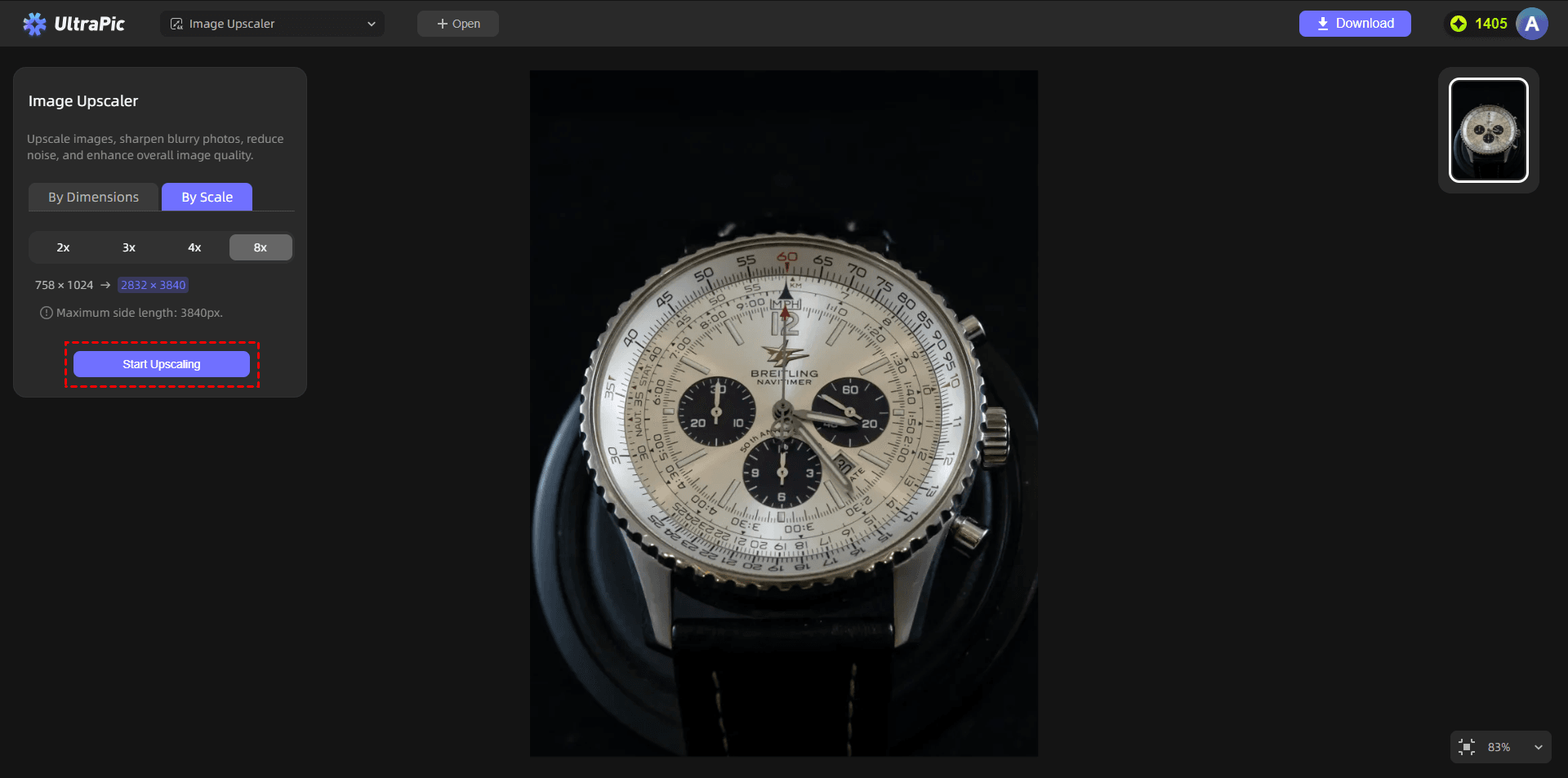
To upscale an image with AI using UltraPic, just access the UltraPic Image Upscaler with a browser, upload your image, and start the upscaling now.
FAQs on AI Upscaling in Photoshop
#1. Why Generative Upscale Photoshop not showing?
If Generative Upscale is not visible, it may be due to:
- Outdated Photoshop version
- Missing software updates
- Hardware incompatibility
- Feature availability restrictions in certain regions or plans
#2. How does AI Upscaling in Photoshop compare to other tools?
Photoshop's AI upscaling tools are generally strong when working with high-quality source material, particularly RAW files through Super Resolution.
However, dedicated third-party and browser-based upscalers, including UltraPic, often provide more flexibility in terms of file formats, scaling options, and accessibility, since they don't require a paid subscription or a specific file type to function.
#3. What are the quality limits of AI Upscaling in Photoshop?
AI upscaling can significantly improve images, but it has limits. Common limitations include:
- Cannot fully restore extremely low-resolution images
- May generate artificial-looking details if overused
- Results depend heavily on the original image quality
- Large scaling (beyond 4x) may reduce realism
Conclusion
That’s all about how to AI upscale in Photoshop with3 different features. If you're looking for a faster, free, and format-flexible alternative, UltraPic offers a genuinely capable option that handles most photo upscaling needs directly in a browser, no software or subscription required.
Its browser-based interface, AI-powered image upscaling, enhancement tools, background removal, object removal, and photo restoration capabilities make it an attractive option for creators of all experience levels.

