

How to Use Canva Watermark Remover - Full Guide
Does Canva have a watermark remover? How to use it? How to remove Canva watermark? Is there a free watermark remover that can export without watermark? Here is a complete guide.

By Jonna Updated on April 22, 2026


Can Canva Remove Watermark?
Canva is a leading all-in-one, browser & mobile visual design platform to make visual communication accessible to everyone. It has evolved into a comprehensive Magic Studio that integrates AI and productivity tools, including Magic Eraser, which allows you to remove unwanted objects, including watermarks, or erase people from photos.
So yes, Canva can remove watermarks from images. It works by brushing over an element, with the tool automatically filling in the background to blend seamlessly. In this guide, we will present how to use Canva watermark remover, and introduce a free alternative that allows you to export without watermark.
How to Use Canva Watermark Remover
The following is how to remove watermark in Canva - step by step. You can also use it to remove objects like people or other superfluous items from a photo. It supports JPEG, PNG, HEIC/HEIF, WEBP, and SVG images.
Step 1. Log in to your Canva account and upload your image to remove watermark in Canva.
Step 2. Select your photo, tap Edit Image, and click Magic Eraser from the Tools menu.
Step 3. Adjust the brush size to match the watermark you want to remove, paint over the watermark, click Erase, and run this app to remove watermark automatically.
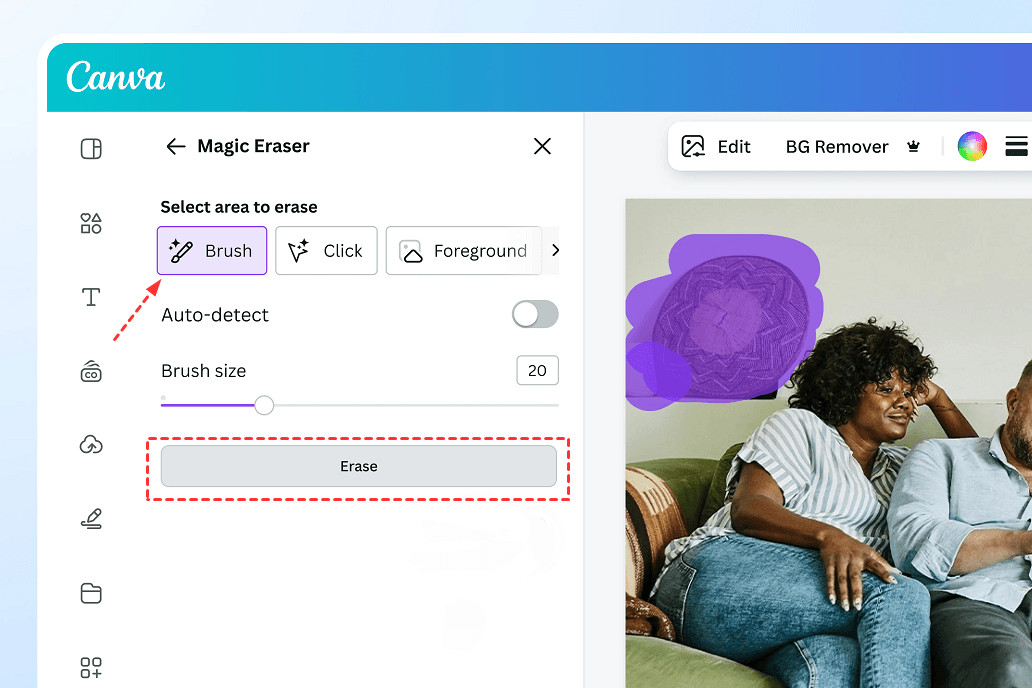
Step 4. Then, you can export the photo after Canva removes watermark.
👉Disadvantages of Canva Watermark Remover:
- Free users cannot remove Canva built-in watermarks, which can only be removed by upgrading to Pro or purchasing individual elements.
- Poor handling of complex backgrounds: When watermarks appear on textured, gradient, or patterned backgrounds, AI-based removal often results in blurring, color blocks, repeated patterns, and distorted edges.
- Poor results with large/dark watermarks: Large, semi-transparent, dark, or text-heavy watermarks often leave behind gray patches, halos, or visible repair marks after removal.
- Loss of detail: After removing watermarks from high-resolution product images, sharpness decreases, and edges become blurred, making them unsuitable for display in large e-commerce images.
Free Canva Watermark Remover Alternative [Export without Watermark]
UltraPic is an AI-powered online photo editor, designed specifically for watermark removal, background editing, object cleanup, etc. It is an excellent Canva watermark remover alternative for users who want clean results without complications.
- Auto Removal - 1-click AI-powered detection and removal of watermark, text, logos, and lines, with no manual selection and with high precise object removal without damaging the image.
- Manual Removal - Lets you precisely paint or select specific areas to remove unwanted elements, giving full control for detailed, accurate editing on complex images.

Remove Watermark Easiy with AI in Seconds
Get clean, transparent photos instantly with AI.
- Automatic watermark removal for photos
- Manual selection and removal of watermark
- Preserve every detail, keep edges sharp and clean
- No design or editing skills needed, instant result


Except for simple and effective watermark removal, UltraPic also offers a wide range of additional features:
- Background removal: It can remove backdrops quickly and easily, and supports batch removal of multiple images at once.
- Background generator: Create custom, realistic backgrounds from text prompts or automatically generate clean white, transparent, or lifestyle scenes for product photos and portraits.
- Photo retouching: Smooth skin, fix lighting, sharpen details, remove blemishes, and enhance colors for professional-looking portraits and product photos.
- Magic erasing: One-click removal of unwanted objects, text, shadows, and other items with clean, natural blending.
- Image fill with AI: Intelligently fills empty or erased areas by matching surrounding texture, color, and background.
- High-quality output: Exports sharp, high-resolution images with no watermark, no blurring, compression loss, or visible artifacts.
How to Remove Canva Watermark from Image
Here is how to run the alternative to watermark remover Canva - UltraPic, or you can use it to remove Canva watermark with ease.
Step 1. Open your browser and visit the UltraPic Watermark Remover. Drag and drop your photo into its workspace.
Step 2. Select the Auto mode or Manual mode (here we select Auto mode as an example). If you use Manual mode, you need to use Brush or Mask to select the watermark areas yourself.

Step 3. Then choose HD Removal or Standard Removal for 1-click removal, then click Download to get the final image.
Conclusion
That's all about Canva how to remove watermark in detail. Watermarks can be frustrating, especially when they interfere with your creative work. While Canva offers some solutions, it is not a dedicated Canva watermark remover in the traditional sense.
If you are working within Canva’s ecosystem, you can run the Canva Magic Eraser directly to remove watermarks. However, for simpler and more effective removal needs, you can try tools like UltraPic as a powerful alternative. It makes watermark removal a one click thing. Also, its Magic Eraser allows you to remove items using a prompt, and you can use it to remove or create a new background and do photo retouching easily.

