Why Use UltraPic for Your Photos

How to Remove Logo from Photos

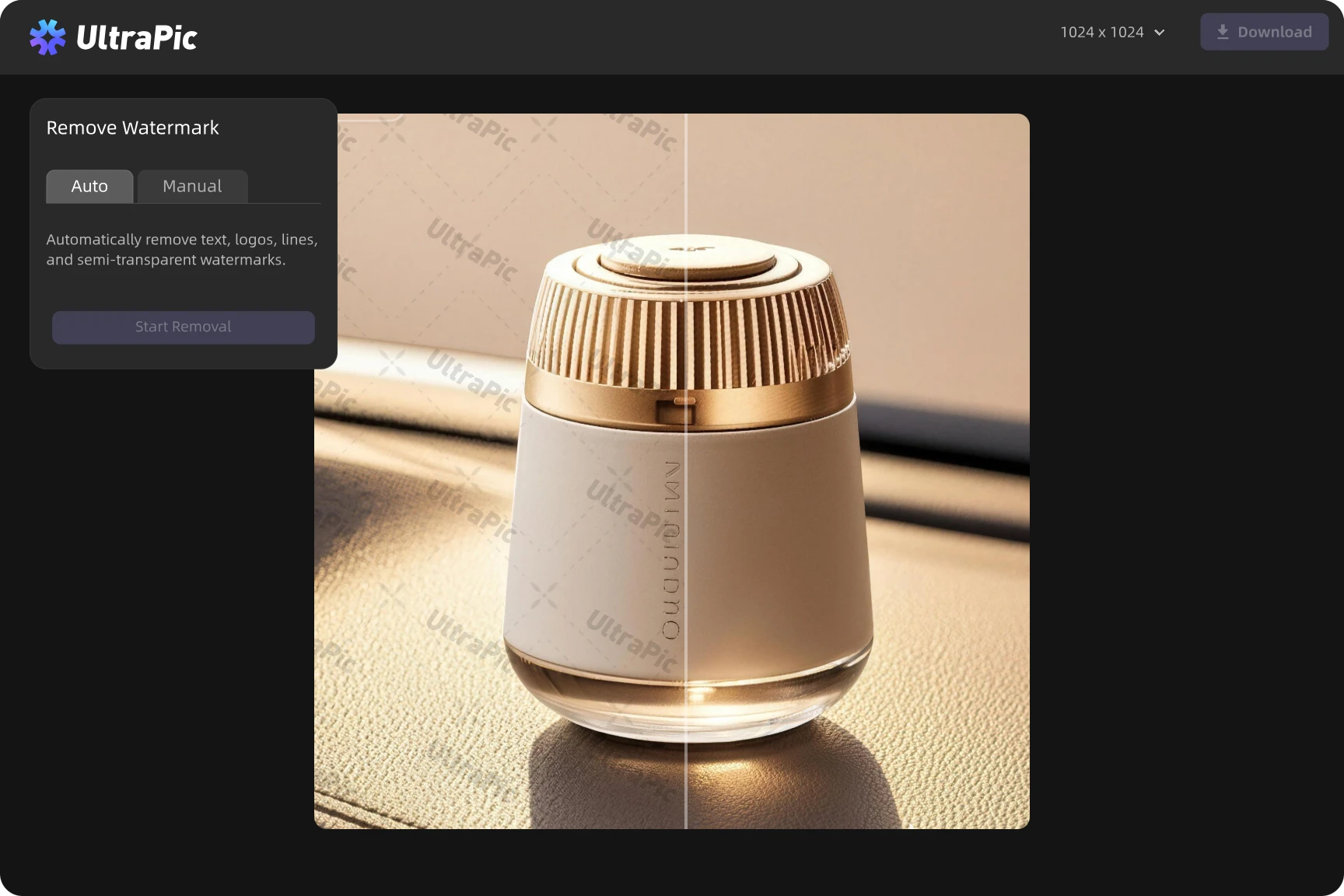
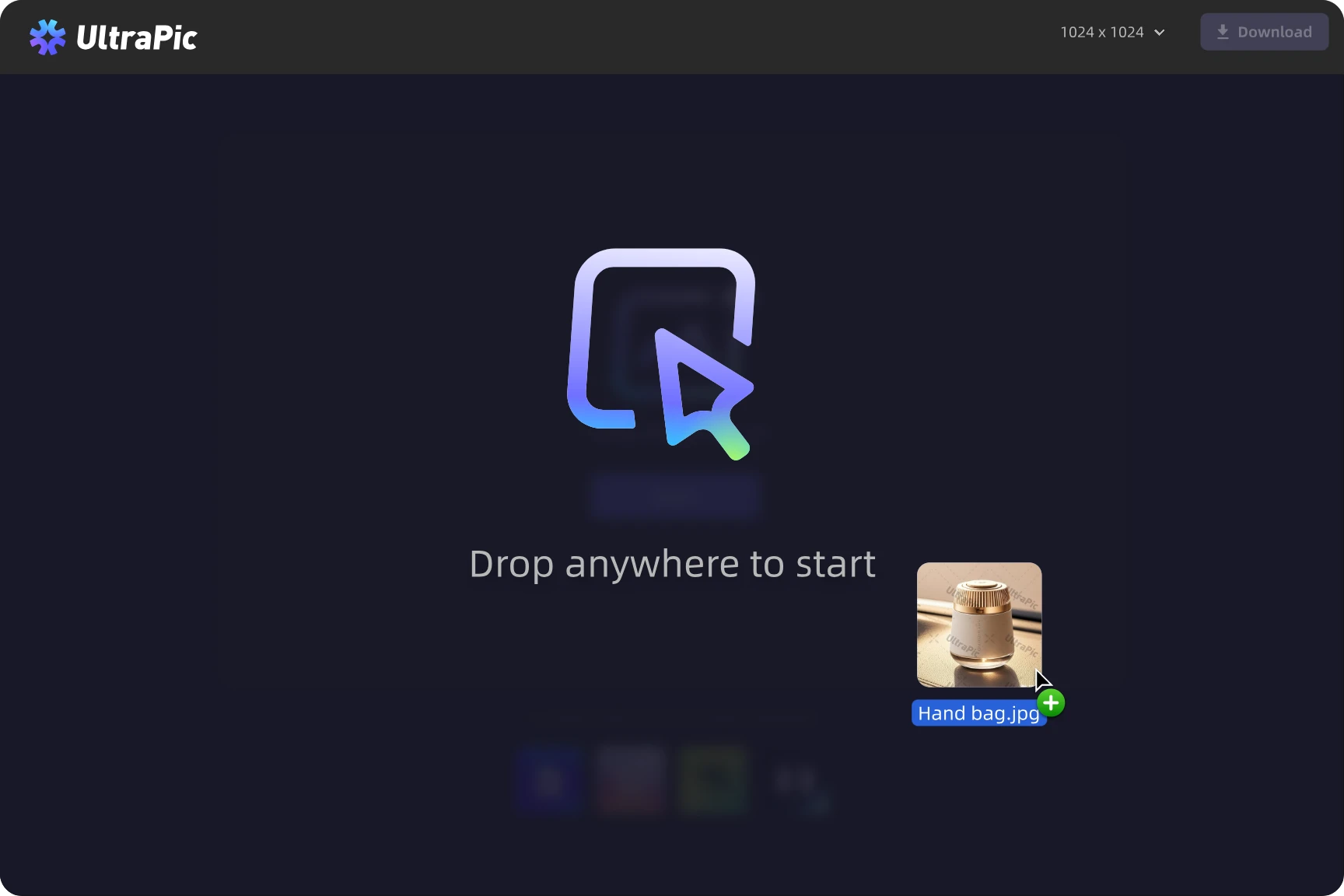
  • Step 1. Upload

    Upload your logo in PNG, JPG/JPEG, WEBP and more common format.

  • Step 2. Remove

    The logo remover with AI automatically processes the image and fills the background.

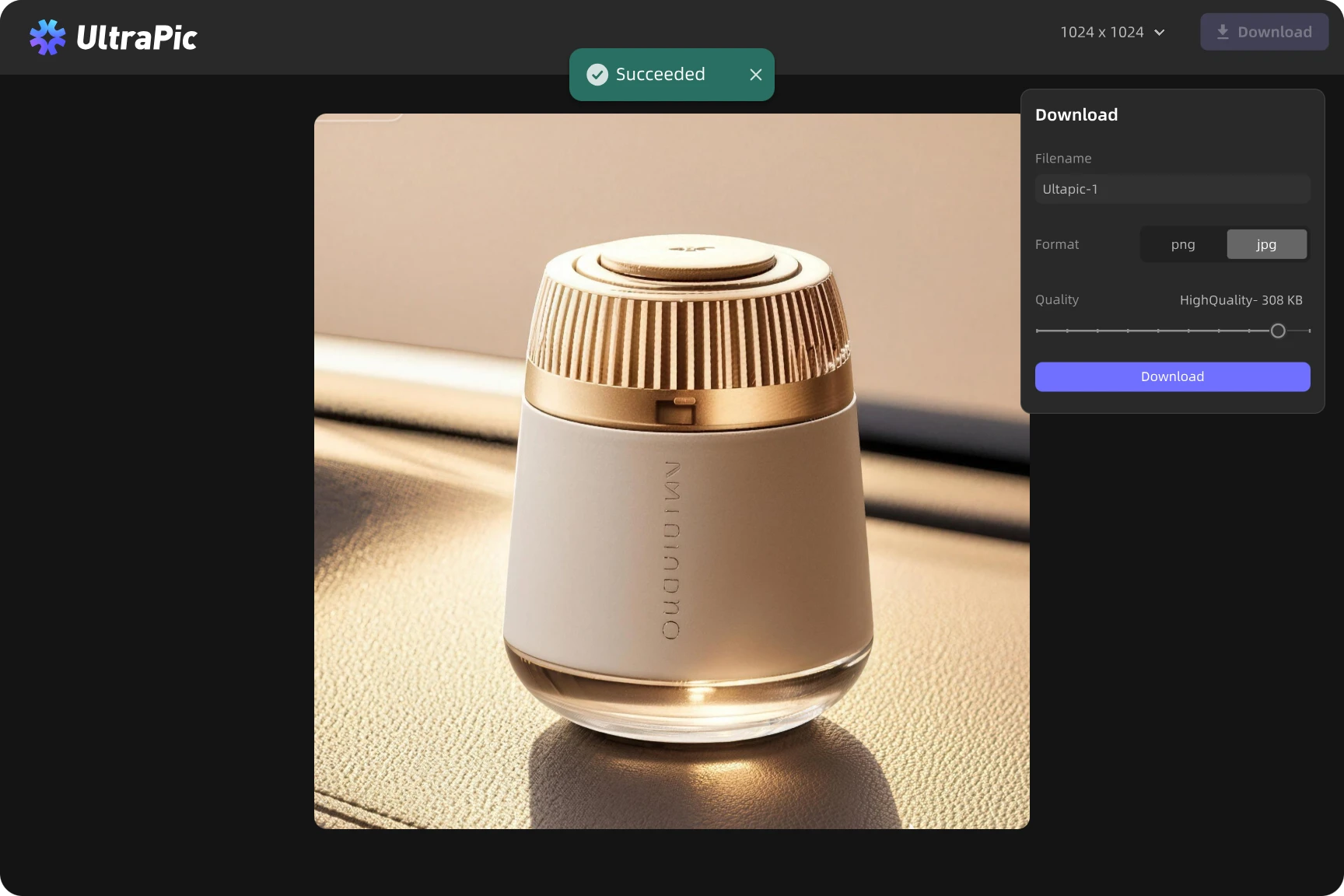
  • Step 3. Download

    Preview, fine-tune if needed, and download your clean, high-quality image.
  • Tips You May Need
    Select the logo area precisely
    Don’t remove too much at once
    Use clear images for better results
    Adjust and retry if needed

Remove Logo from Downloaded Images

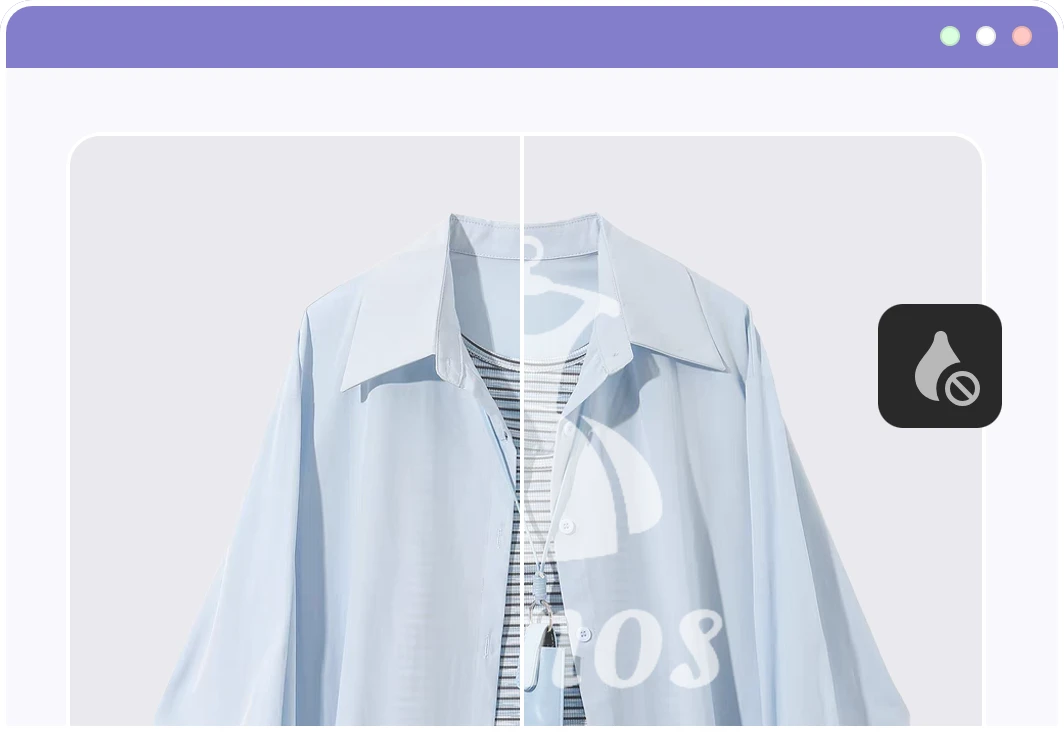
Found a great image but it has a watermark? This is one of the most common use cases.

  • 1. Remove watermark from photo for reuse
  • 2.Clean up images for social media or blog posts
  • 3.Make visuals look original and ready to publish
Remove Logo Now

Clean Up Supplier Images for Your Store

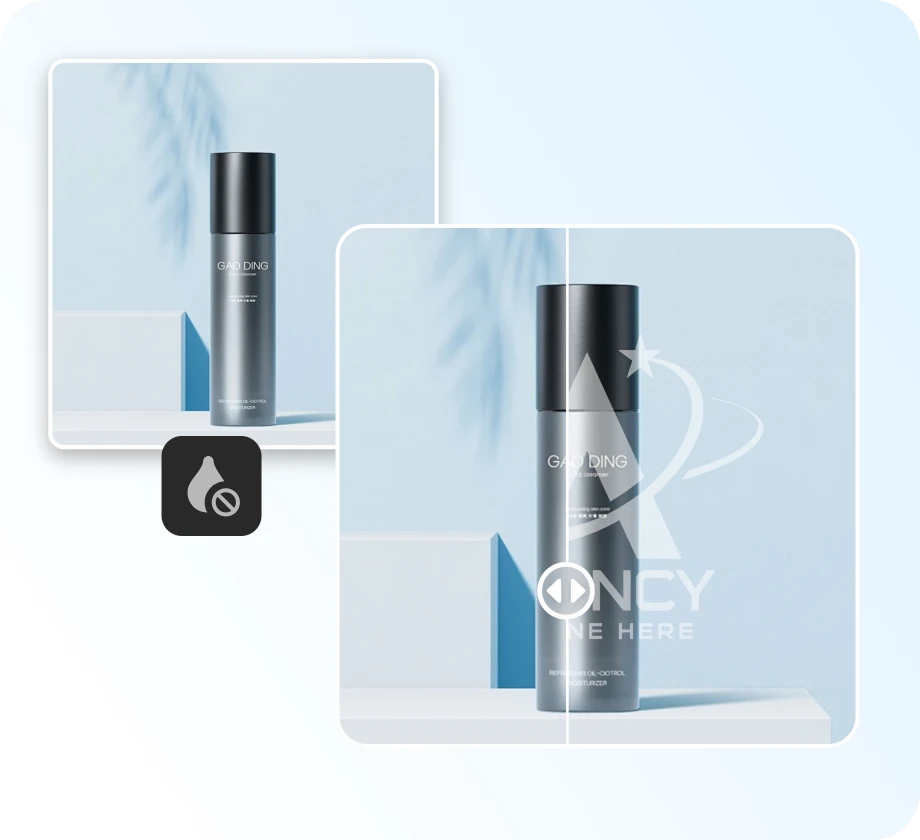
Many product images come with supplier logos or watermarks that don’t match your brand.
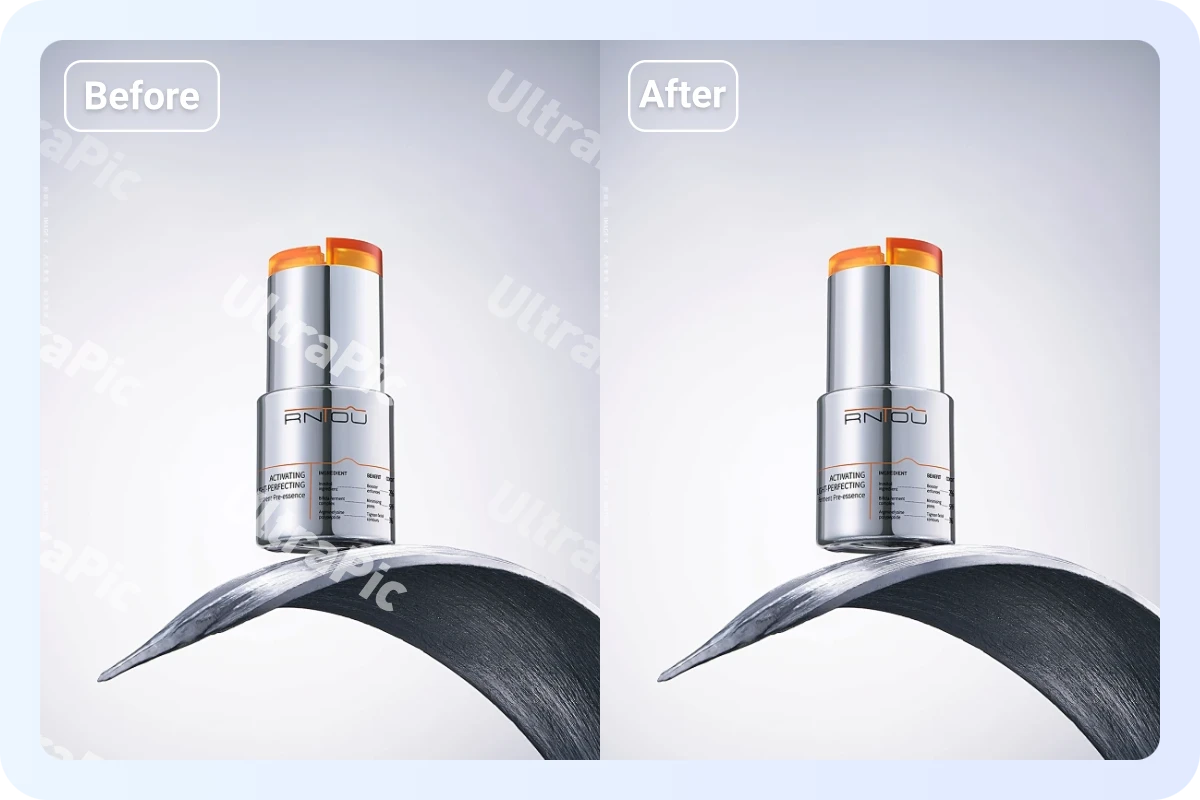
  • 1.Remove logos from product photos before uploading
  • 2.Create cleaner product images for your online store
  • 3.Make your listings look more professional and consisten
Remove Logo Now

Edit Screenshots and Marketing Materials

Screenshots and shared visuals often include unwanted branding or overlays.

  • 1.Remove logos from screenshots
  • 2.Clean up presentation slides or ads
  • 3.Make images clearer and easier to use
Remove Logo Now

More UltraPic Tool to Explore

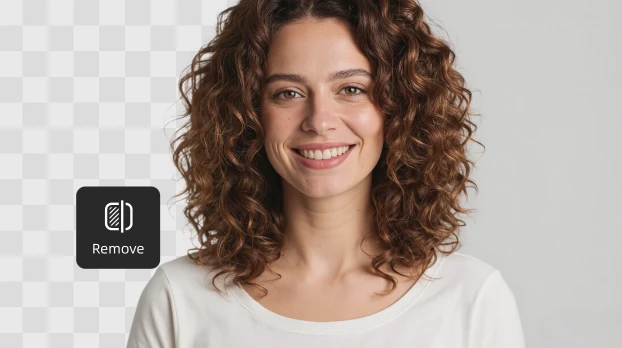
Remove Background

Instantly remove background and get a clean, transparent image in one click.

Background Generator

Create new backdrops automatically — from studio looks to creative scenes.

Batch Editor

Edit up to 50 photos at once and keep your visuals consistent and ready to publish.

Brightness & Color Adjustment

Fine-tune lighting and tones to make your images look vibrant and natural.

Angle & Rotation Tools

Perfect your composition by rotating, flipping, or aligning your photos easily.

Smart Crop & Resize

Automatically crop and resize images for e-Commerce, social media, or print in seconds.

Add Custom Backgrounds

Upload or design your own backgrounds to personalize your images any way you want.

AI Product Photography

Automatically refine lighting, colors, and details for professional-quality product images.

UltraPic, Do More with Your Image

Frequently Asked Questions

How to remove logo from a photo?

You can upload your image, select the logo or watermark area, and let the tool automatically remove it. The background will be filled in to match the surrounding image.

How to remove watermark from a photo for free?

Many tools offer a free logo remover option. You can try removing watermarks from your image without paying, then upgrade if you need higher resolution or batch editing.

Is there a tool that removes logos automatically?

Yes, tools with AI can detect the logo area and remove it automatically, saving you from manual editing.

Will removing a logo affect image quality?

A good tool will keep the background natural and avoid blurring. The goal is to make the edited area blend in so the image still looks clean and usable.

Can I remove logos from product photos for my store?

Yes, many sellers remove supplier logos or watermarks before uploading images to their online store to keep product listings clean and consistent.

How do I remove text or watermark from an image?

The process is the same—just select the text or watermark area, and the tool will clean it up automatically.

Can I use a logo remover on any type of image?

Yes, you can remove logos from product images, social media photos, screenshots, and even personal pictures.

Try Free Logo Remover Today

Get Started For Free
  • No threshold
  • High precision
  • Free unlimited use