

Best Free Online Photo Retouching Tools Compared (With Tutorials)
Whether you’re touching up a selfie, polishing a product image, or preparing visuals for social media, photo retouching has quietly become part of everyday life.
By Crystal Updated on January 28, 2026


What is photo retouching and who needs it
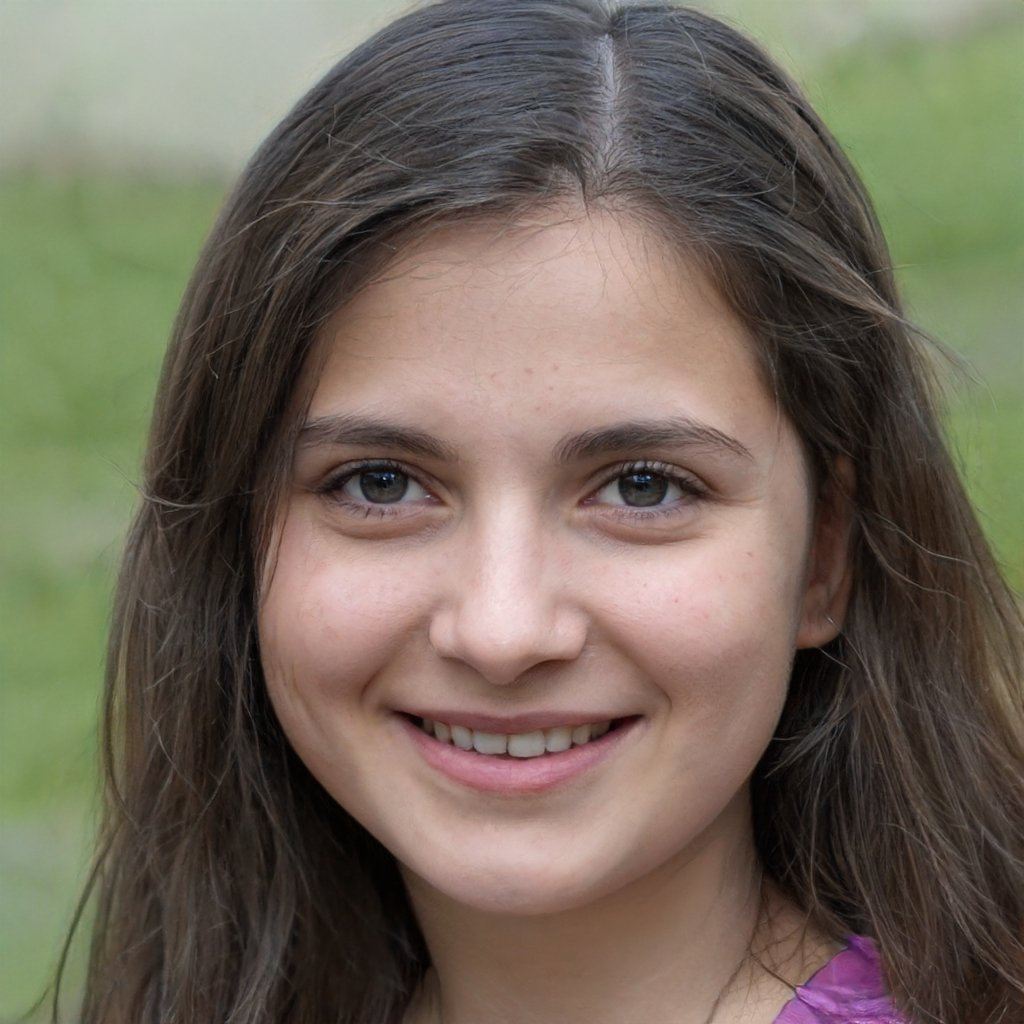
Photo retouching is the process of improving an image by correcting imperfections, enhancing details, and adjusting colors, lighting, or textures. Sometimes it’s about removing a tiny pimple.
And who needs it?
- Content creators use photo retouching to stand out in crowded feeds.
- Small business owners rely on it to make product photos look clean and trustworthy.
- Professionals use it for portfolios and resumes.
The beauty of AI photo retouching online free tools is accessibility. You don’t need a powerful computer. You don’t need installation. You don’t even need prior experience. If you can drag, click, and adjust sliders, you can retouch photos.

Top free online photo editing tools compared
Here are some of the best free online photo editing tools, each with its own strengths and weaknesses, and each suited to different scenarios.
| Tools | Features | Limitation | Best for |
| Pixlr | Layers, Healing | Ads | Deatil editing |
| UltraPic | AI + studio retouching mode | Per limits per week | Fast retouching |
| Fotor | Beauty tools | Export limits | Portrait |
1. Pixlr – the balanced free photo retouching tool
Pixlr is a highly recommended, completely free online photo editor that is known for its balance between powerful features and ease of use. It runs entirely in your browser, making it easy to use.
- Pixlr X: For quick edits.
- Pixlr E: Provides advanced photo editing features and is the core tool for free users.
Its professional-grade features include a healing brush, clone stamp, layers, adjustment panels, filters, and other features that are usually only available in paid software. It supports skin retouching, object removal, color adjustment, and more.
Step-by-step tutorial: basic photo retouching in Pixlr
1. Open Pixlr E in your browser
2. Upload your photo. Select the Healing Brush to remove blemishes
3. Use Adjustment > Brightness & Contrast to fix lighting
4. Apply Color Balance for natural tones
5. Export your image in JPG or PNG
2. UltraPic – online AI photo retouching with one click
UltraPic is a modern free online photo retouching tool designed for users who want both speed and control. It stands out by offering two efficient retouching modes, making it suitable for beginners and advanced users alike.
Main functions of UltraPic photo retouching:
✨ AI Photo Retouching: Automatically identify photo problems with one click. Just upload the image, and AI can intelligently remove blemishes, smooth skin, and optimize the light and color of the product. It's perfect for users who need to quickly process a large number of products or portraits.
✨ Studio Retouching: Intelligent analysis removes low-frequency defects, retains high-frequency details, and strictly retains the shape, light and shadow, and texture of the original image. Suitable for high-quality original images taken by professionals with good light and shadow foundation.

Create Studio-Quality Product Photos with AI
Make product images clean, professional and conversion-ready.
- Remove messy backgrounds in one click effortlessly
- Generate eye-catching custom backdrops for photos
- Boost clicks and sales with better product images
- No design or editing skills needed, instant result


Quick steps: How to retouching photos with UltraPic
Whether you’re enhancing portraits, social media posts, or product images, you can follow the steps to retouch your photos.
1. In UltraPic's photo retouching page, click Upload Image or drag and drop your image.
2. Choose AI Retouching module, it automatically smooths skin, removes blemishes, balances lighting, and enhances product details with one click.
You can typically choose effect strength setting like High. Then click Start Retouching.
✍Tips: For more precise control, switch to Studio Retouching mode to make precise adjustments.
3. Within seconds, a high-resolution image with white background is generated. Once satisfied, directly download the high-resolution, watermark-free result.
3. Fotor – all-in-one creative design platform
Fotor primarily offers basic brightness and contrast adjustments, extensive portrait beautification features (acne removal, face slimming), and a vast collection of filters, stickers, and design templates.
Advantages:
- Simple operation with intuitive visual effects;
- Template-based design enables rapid creation of posters and social media images;
- Excellent mobile app experience.
Limitations: Premium templates and certain effects require payment; limited professional-grade local adjustment tools.
Conclusion
The secret to finding the best free photo editing tools lies in defining your needs:
- For ultimate convenience, opt for AI-driven tools like UltraPic;
- For professional-grade deep editing, Pixlr is worth exploring;
- To blend design and photo editing capabilities, Fotor is an excellent choice.
Free photo editing technology has evolved from basic filters to powerful AI-powered editing. Whether optimizing portraits, social media content, or product images, selecting the best free online photo editing tool can significantly enhance results without incurring additional costs.

